

You need a Production Assist account to sign in to the desktop app and use online projects. This page explains username rules and how to set, change, and reset your password.
To sign in or register using a trainer voucher, you must use the same email address as the one specified in the voucher and continue the link in the same browser tab. Details and terms of participation are available under Trainer Vouchers.
The website keeps the voucher link for the current browser session and removes the secret part of the link from the address bar. After you sign in successfully, Sign in or Create account takes you back to redemption. Even if the session expires, the voucher remains saved for signing in again in the same browser tab; you must then confirm redemption again. The period starts only when you explicitly confirm. If a message says the recipient account is incorrect, sign in to the account with the invited email address. Changing the account email later does not allow a second voucher trial period.
Choose your username and password when you register. Enter your username in the Username field when signing in. It is different from your email address and display name.
The username must contain at least three characters. It can include letters A to Z, digits, and $, -, _, ., or +. Spaces and other characters are not allowed. A username that is already taken cannot be registered again. Remember your username: Forgot Password? asks for it.
You also need an email address you can access to register. Production Assist sends the password reset link to the email address associated with your account. See Register for the required fields and complete account-creation steps.
During registration, enter your password in Password and Repeat Password. The two values must match. The current registration form does not specify a minimum password length or character classes. Use a unique password that is difficult to guess and that you do not use for other accounts.
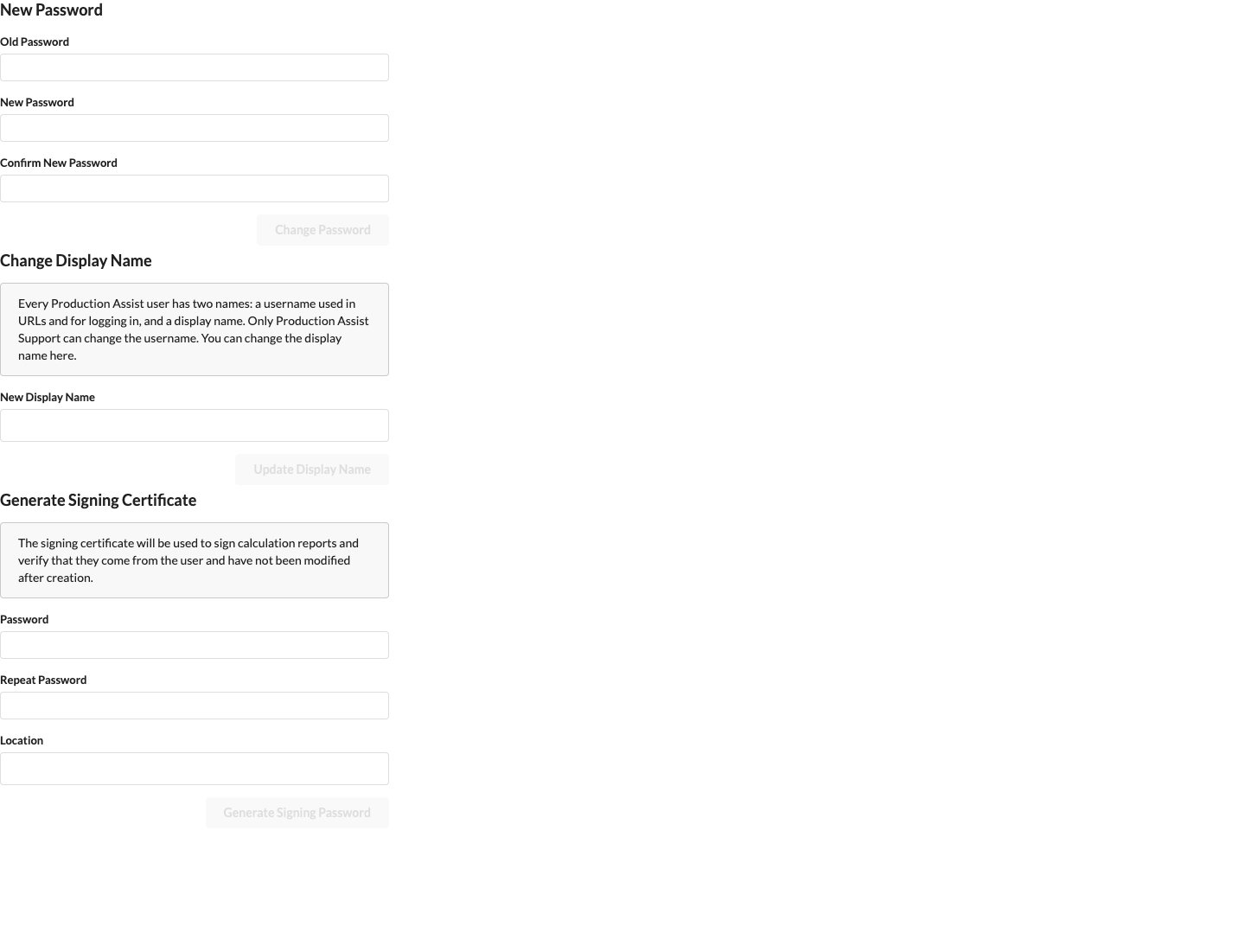
If you do not know your current password, reset it using the recovery link.
Open the sign-in page and select Forgot password?.
Enter your Username and select Send recovery link. The link is sent to the email address associated with your account. Production Assist indicates whether the request succeeded.

Open the link from the email within 15 minutes. It can be used only once. Enter the same value under New password and Confirm new password, then select Change password.
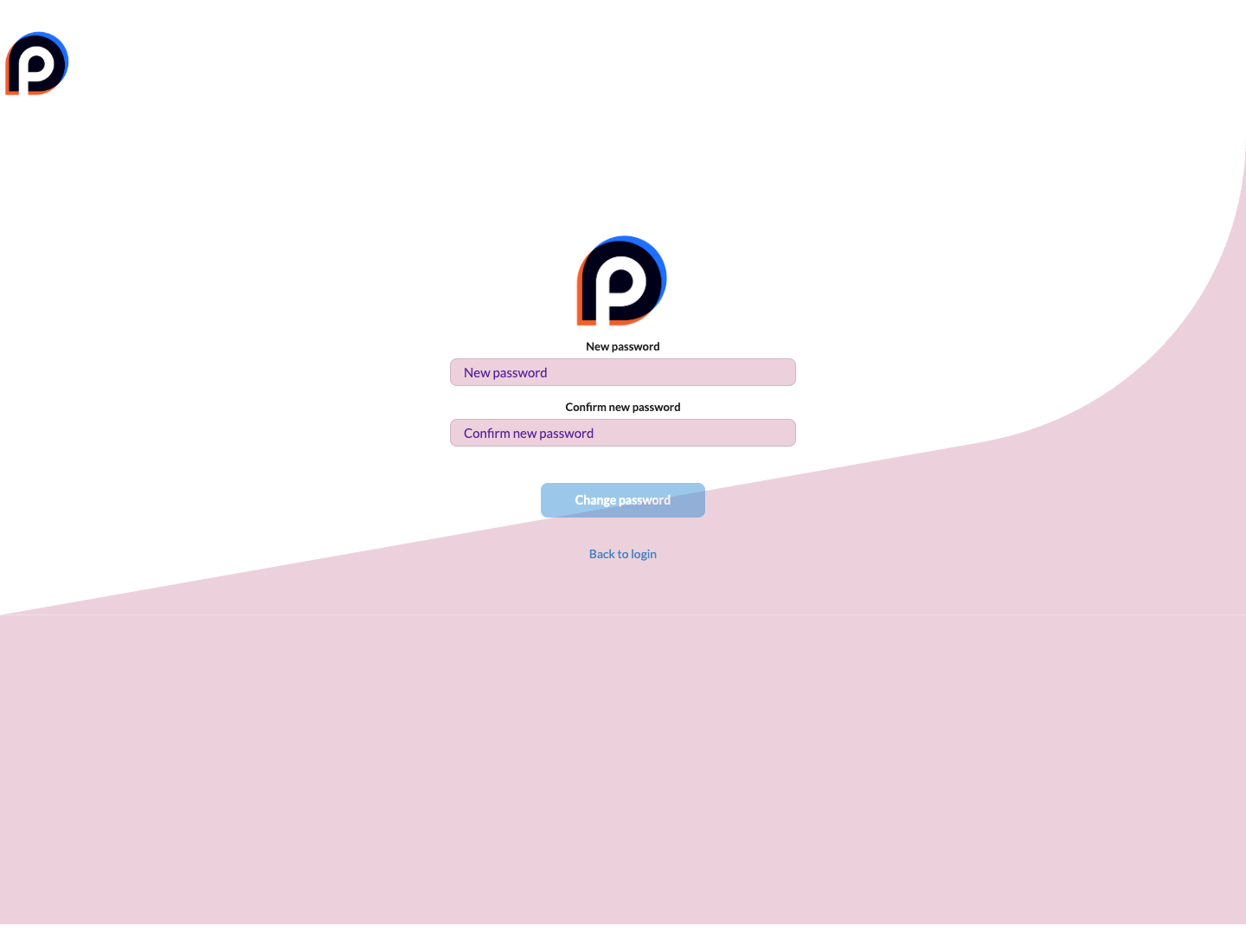
Select Back to login to return to the sign-in page, then sign in with your username and new password.
When you reset your password, the form checks that both password fields are filled in and match. The current interface does not specify an additional minimum length or character rules.
For other personal account settings, including your profile and signing certificate, see Account Profile and Security.