

Find your current plan and next due date on the Production Assist website under Settings → Account & Billing. There you can switch between Community, Basic, Pro Teams, and Arena. For paid plans, you can choose a monthly or yearly billing cycle during confirmation. Check the prices shown before confirming.
For personal details and security options, see Account Profile and Security.
Sign in to the Production Assist website and open User Settings in the upper-right corner.
Open Account & Billing. The page shows your current plan, next due date, and any plan change already scheduled.
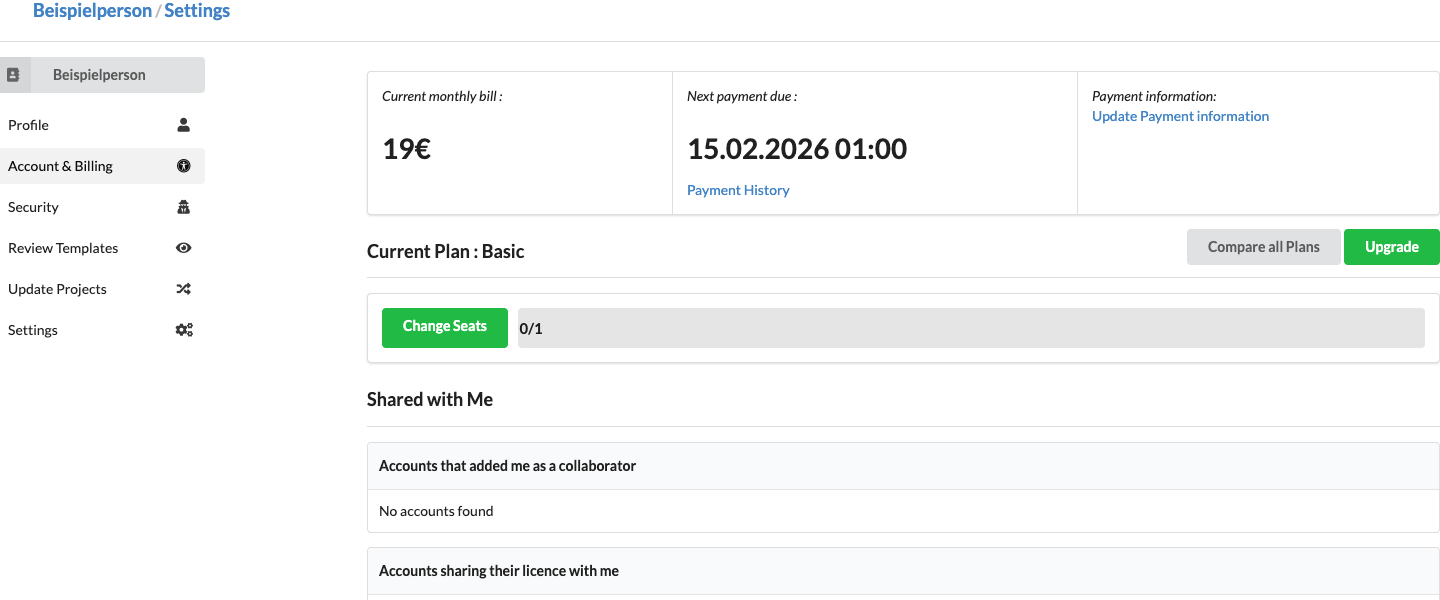
Select Upgrade or Compare all Plans. Both buttons open the plan overview.
Select Subscribe Now for the plan you want. For a signed-in account, this opens the change flow for that plan.
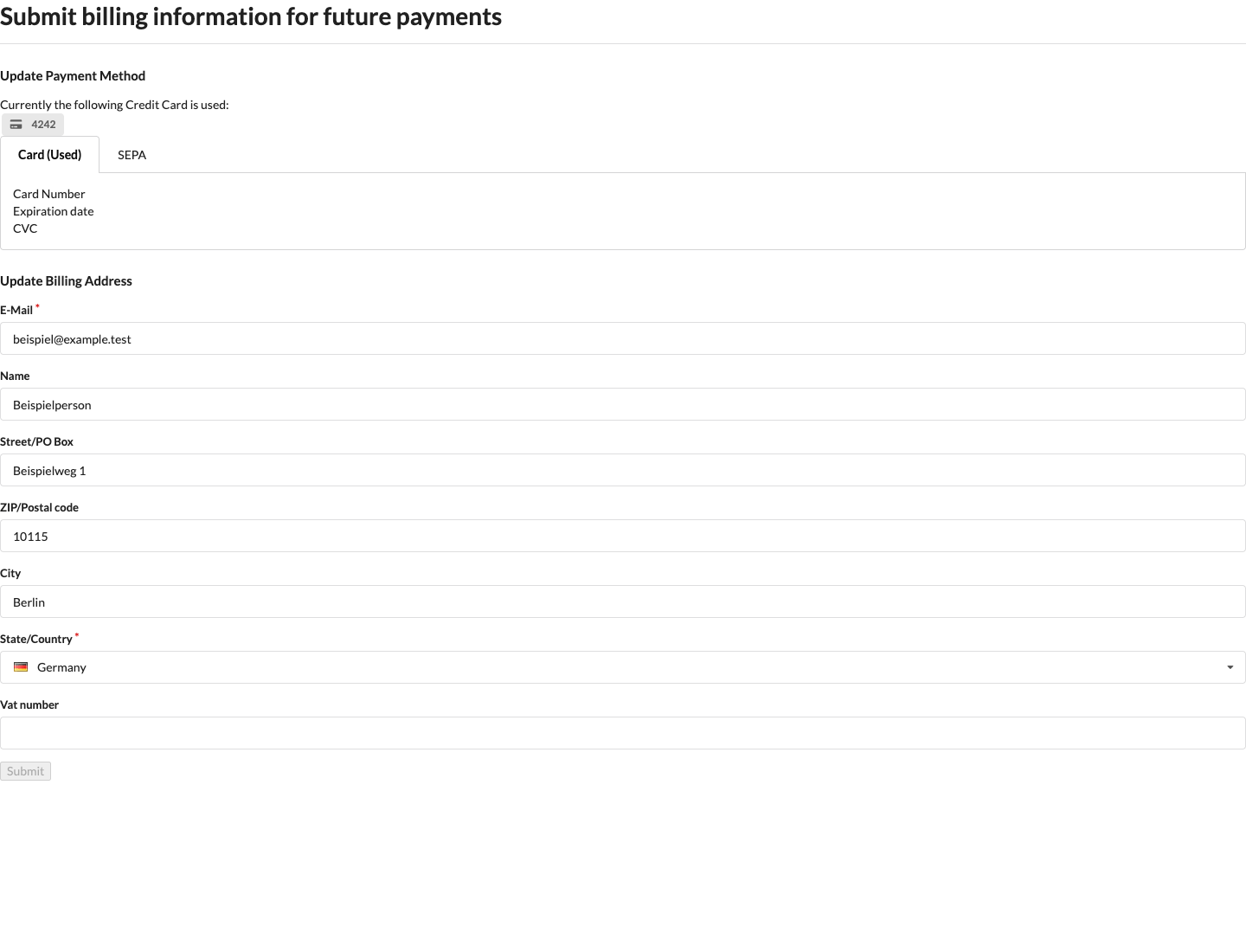
If no payment method is saved for the paid plan, select Card or SEPA, enter the payment and billing details, and select Submit. Saved billing details are prefilled. Email address and country are required; a name is also required for SEPA. For some EU countries, the form also requires the Vat number. For Card, enter the card number, expiration date, and CVC. For SEPA, enter the IBAN and read the direct debit authorization below the field. After the payment method is saved, the plan confirmation appears. Community does not require a payment method.
On the confirmation page, compare Old and New, including the plan, billing cycle, next due date, and total price. For a paid plan, select Monthly or Yearly if needed, then select Confirm. After a successful response, the site returns to Account & Billing.
The price breakdown shows the seat price, plan price, coupon, tax, and total. For Pro seat changes, you can adjust the number of additional seats; the five included seats are shown separately from the additional quantity. If you change the additional quantity, Monthly/Yearly selection is disabled. A coupon code is optional: enter it under Coupon and select Check to validate it and review the displayed discount. The change is submitted only when you select Confirm.
A downgrade is scheduled for the end of the current billing period. Your current license remains active until then, and the scheduled plan appears under Account & Billing. When you upgrade, the prorated difference may be charged immediately. The values on the confirmation page are decisive. A yearly billing period does not end after one month.
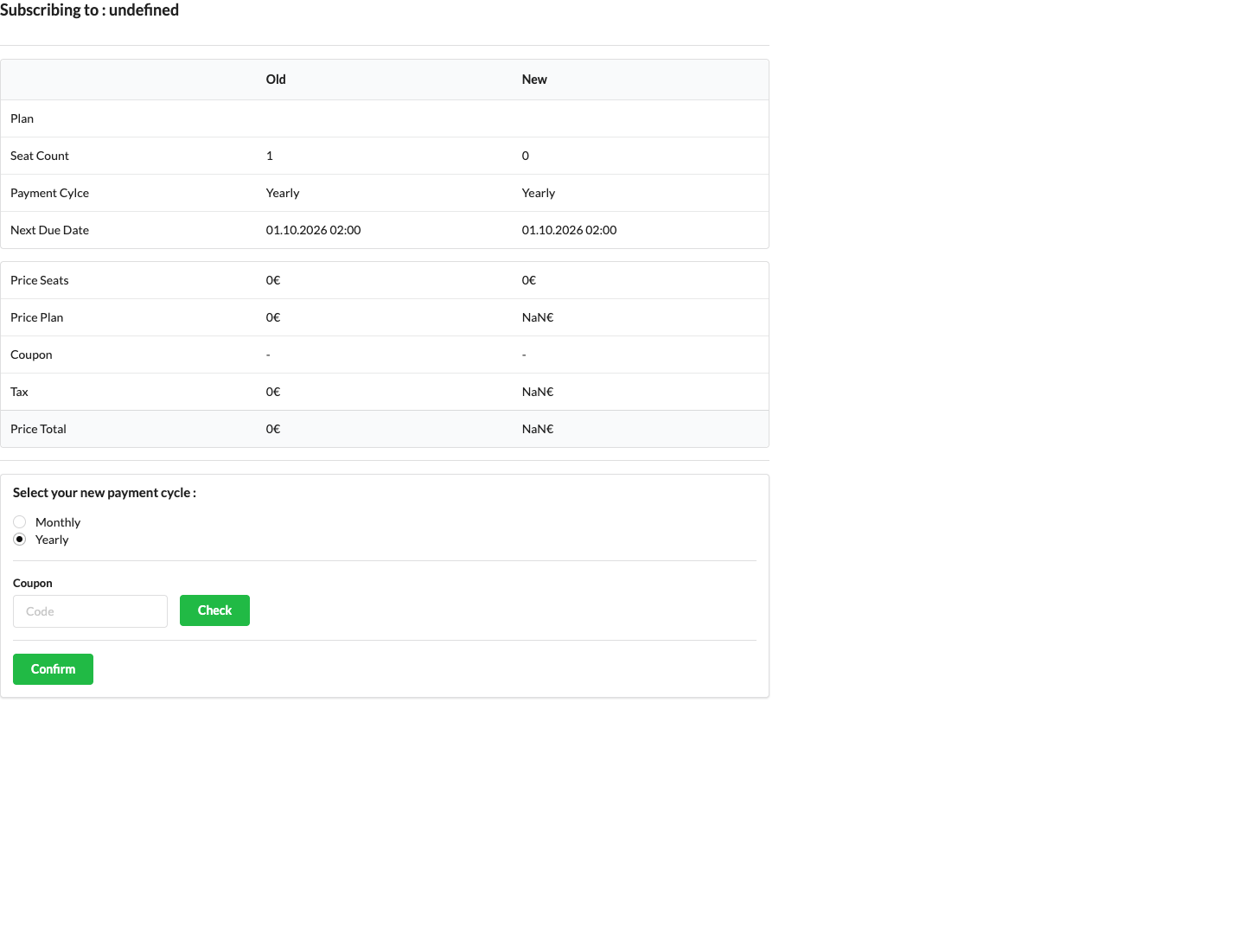
The rendered screenshots use example data. Some values on the confirmation page may not have loaded and may appear as “undefined” or “NaN”; these are not contractual prices. Use the plan overview and the confirmation page shown during your actual plan change as the source of the applicable amounts.
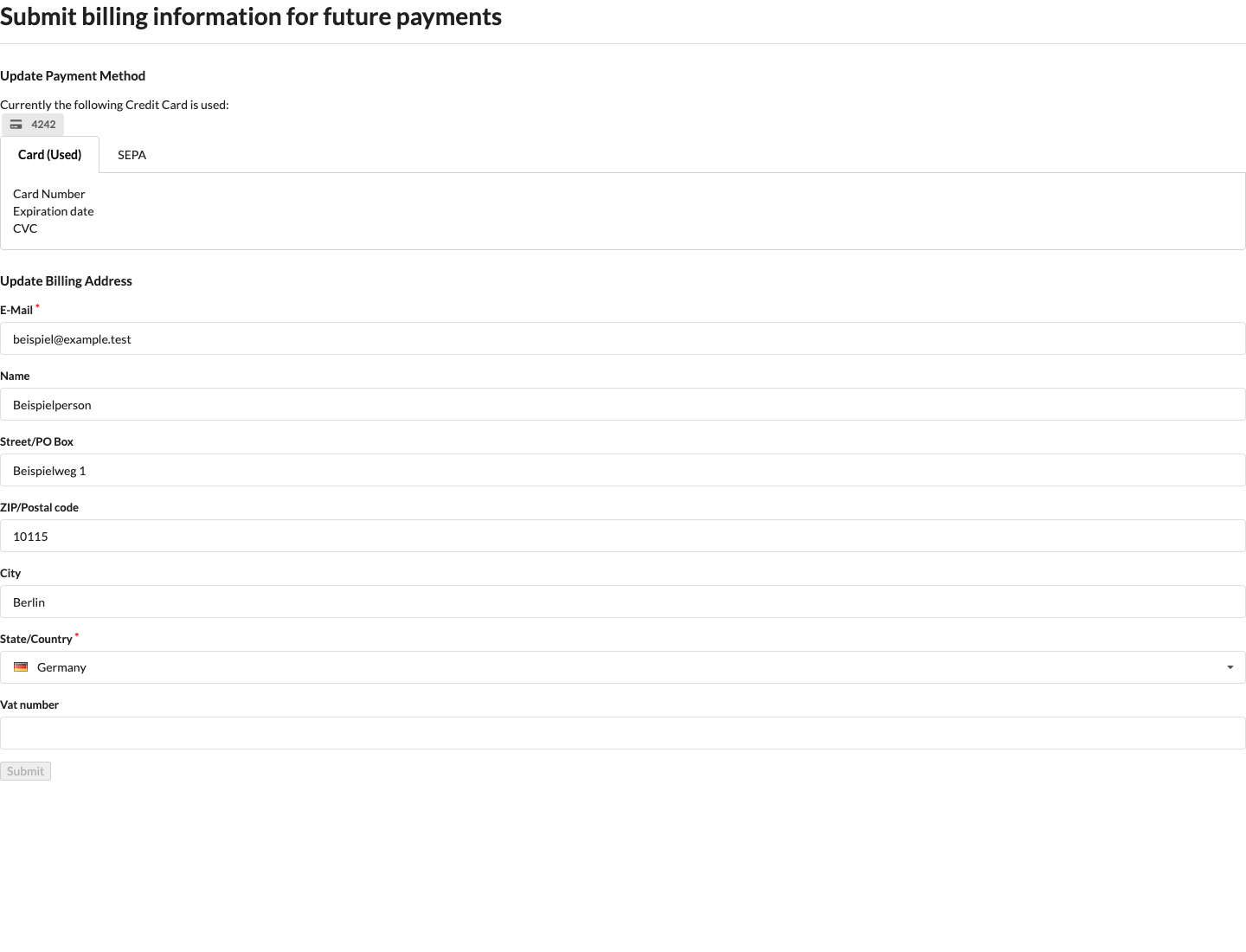
Under Account & Billing → Update Payment information, you can edit your card, SEPA mandate, and billing address separately from changing your plan. The saved payment method appears at the top. Select Card or SEPA to change the payment method. Email address and country are required in the billing address; you can add other address fields, a name, and a VAT number. Saved details are prefilled.
The separate Update Payment information page uses the same form. There you can change the payment method or billing address without confirming a plan change.
Find previous payments under Payment History. The table shows the date, outstanding and due amounts, amount received, billing period, and invoice. Dates are read-only; amounts are shown in euros.
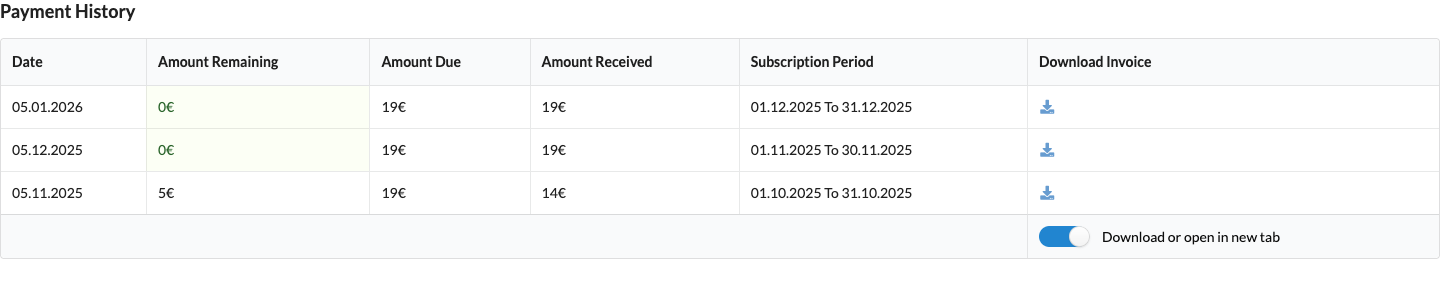
| Column or action | Description |
|---|---|
| Amount Remaining | Amount still outstanding. An amount of €0 is highlighted in green. |
| Amount Due | Amount due for the payment transaction. |
| Amount Received | Amount already received. |
| Subscription Period | Start and end of the associated billing period. |
| Download or open in new tab | When enabled, the invoice icon downloads the invoice. When disabled, the icon opens the invoice in a new tab. |
If no response appears after you select Confirm, reload the page and check Account & Billing for the changed plan or scheduled downgrade. For further payment issues, contact Support by email.
An invited person can redeem a voucher after signing in or registering with the appropriate account. No payment method is required to redeem the voucher or access the service for three months. The period begins only after redemption is confirmed and ends after three calendar months. See Trainer Vouchers for the process and requirements.
During the free Stripe trial period, the account page shows the selected trial edition; no subscription payment is due for it. A paid follow-on plan is shown separately. Only if you explicitly confirm a paid plan and its first charge date in the plan change flow will that plan be scheduled to start at the end of the voucher period. The first payment is not due before the displayed end date. Merely adding or changing a payment method does not constitute consent to a paid plan. If no plan is scheduled, Stripe ends the trial subscription at its original end date. The next regular online license update takes Community and other independently valid access into account.
You can change the scheduled plan during the trial period or cancel it by selecting Community. The original voucher end date and selected trial edition remain in effect; a lower follow-on plan also does not shorten the free access. Monthly and yearly billing begin no earlier than the original voucher end date. Changes to additional seats are disabled during the voucher period. If a payment fails, the expired voucher is not extended. Regular plan and seat changes remain possible after paid service begins. Changes already scheduled are retained when the account is updated and take effect at the scheduled billing period end.
A voucher for Pro Teams or Arena includes up to five license shares during the voucher period; Basic includes no shares. Shares updated online follow the same Stripe trial period. Project memberships and project access are not removed as a result. For instructions on sharing licenses normally, see Share a Pro Teams License and Grant Project Access.
The native license and its offline cache remain unchanged. An ongoing session without an internet connection is not interrupted when the trial ends. Stored account, project, and shared licenses may remain usable until the next regular online license update.