
Under User Settings → Update Projects, you can change resources in multiple online projects or synchronize projects with their respective templates. Both actions write to the selected projects. Before starting, check the project list and save any project state you need to keep. You need write access to every target project; otherwise, the update may fail.
The page has two separate sections: Update Project Resources for resource data and Update from Project Template for the drawing state. The selections and options in one section do not apply to the other.
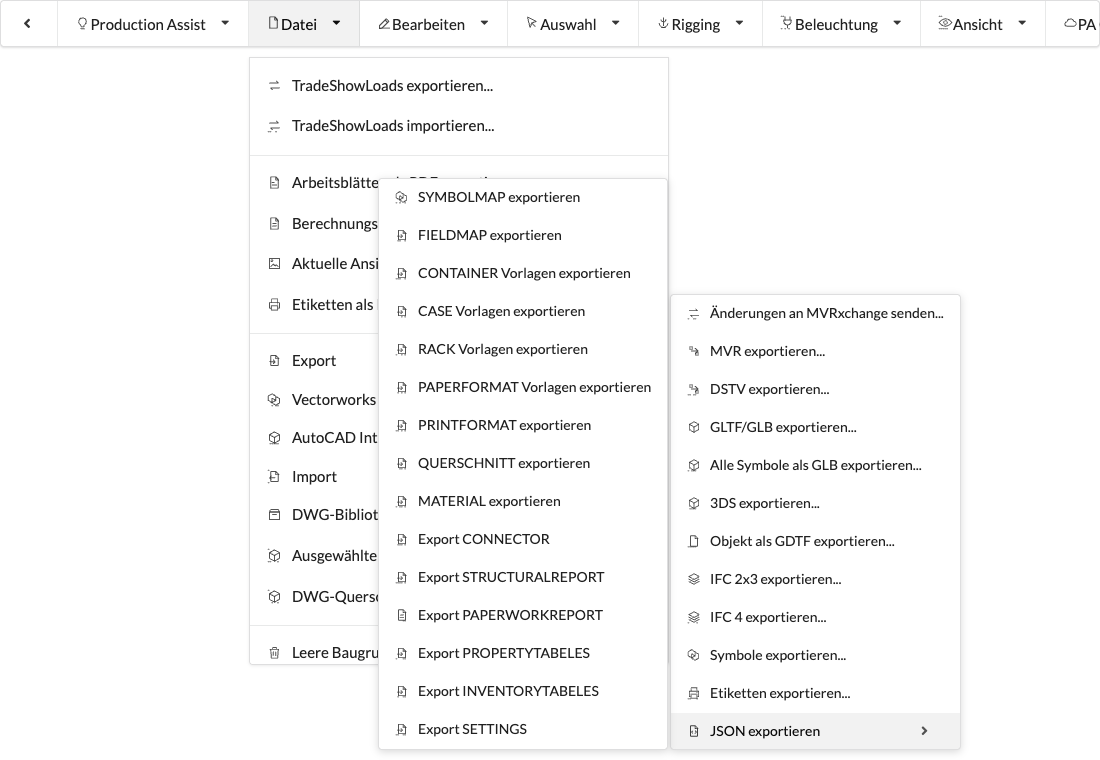
In the upper section, paste a JSON object and select the resource types to write under Update Content. For each selected type, the JSON must contain a list under the corresponding key. An unselected type remains unchanged. In the desktop app, you can export data from the current drawing as a starting point using File → Export → Export JSON; select the appropriate resource type in the submenu. Review the exported JSON and target projects before applying it.
| Selection under Update Content | JSON key | Purpose |
|---|---|---|
| Symbol Map | symbolMap | Maps external symbol names to Production Assist symbols, for example during MVR import. |
| Field Map | vectorWorksfieldMapping | Maps external fields to Production Assist properties; see Field Map in the Resource Manager. |
| Cross Section Data | crossSection | Provides cross-section templates for structural members. |
| Material Data | material | Provides material templates for calculations. |
| Structural Reports | calculationReport | Updates templates for calculation reports. |
| Document Templates | paperworkReport | Updates templates for documentation. |
| Print Format (Size) | printFormats | Updates print formats. |
| Print Style (Font and Style) | paperFormatTemplate | Updates page layout templates. |
Here is an example of a Symbol Map:
{
  "symbolMap": [
    {
      "From": "SPS_Hängepunkt",
      "ToName": "Bridle Placeholder",
      "ToRessourceIdent": "template-1",
      "ToUUID": "{579468EE-7343-40FF-9014-D2A7AAD98700}"
    },
    {
      "From": "Hängepunkt_SPS",
      "ToName": "Bridle Placeholder",
      "ToRessourceIdent": "template-1",
      "ToUUID": "{579468EE-7343-40FF-9014-D2A7AAD98700}"
    },
    {
      "From": "Distro HAN-16 6-way Plugbox",
      "ToName": "PlugBox HAN 16 -> 6xSchuko",
      "ToRessourceIdent": "kabel_auflosungen",
      "ToUUID": "{1DA0E9CF-787C-4160-9E5D-8EE8B6F6E700}"
    }
  ]
}
The values in the example are sample mappings only. A Symbol Map requires target resources that are available in the relevant drawing. The Resource Manager explains how to review mappings.
Username/Project Name. Matching projects are initially checked in the project list; clear the checkboxes for projects to exclude.| Option | Effect for each selected resource type |
|---|---|
| Neither option | Replaces the entire existing list with the list in the JSON. Entries that are missing from the JSON are lost. |
| Append New Objects | Keeps existing entries and adds only entries whose keys do not already exist. |
| Overwrite Existing Entries | Replaces entries with matching keys using the values from the JSON; new entries are not added. |
| Both options | Replaces entries with matching names and adds new ones; other existing entries remain. |
For a Symbol Map, From is the comparison key. For a Field Map, the comparison key is the combination of the external parameter name and field. For the other types available here, the update uses Name. Check these values carefully when you want to append or overwrite entries.
While the update is running, the page shows a progress bar. If a resource update fails, Error during update appears with the project name. In that case, check write access, the JSON keys and contents, and the server connection; then check the affected resource in the project. The page does not show a success message for each project.
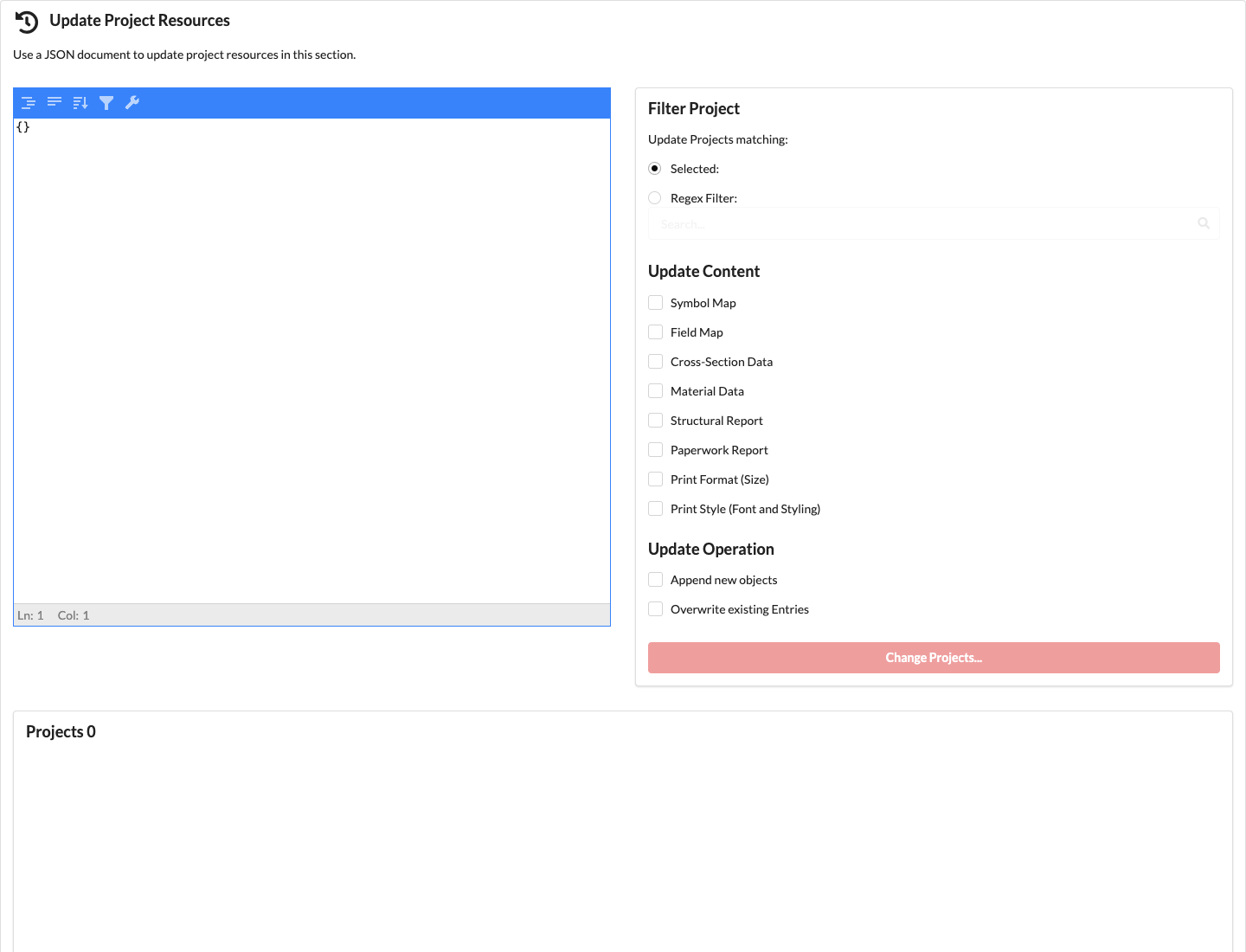
The synthetic example view shows both sections of the page and empty project lists. Filter Projects, Update Content, and Update Operation control which resources are changed in which projects. The current interface may include additional resource types, such as print formats and print styles.
When a project is created, the selected project template is used as its starting point. Later changes to the template are not applied to existing projects automatically. The Update from Project Template section synchronizes each selected project with its own saved template. The Projects with Selected Template field filters only the target projects; it does not change their template.
Username/Project Name.| Option | Effect |
|---|---|
| Copy Project Resources | Copies the entire set of project resources from each template. This replaces the target project's existing project resources; entries missing from the template are not retained. |
| Only Update Objects from Template | Synchronizes only objects that originated from the template; objects newly created in the target project are excluded from the object comparison. |
| Neither option | Synchronizes the drawing state with the template. Objects that exist only in the target project may also be removed or changed. |
The synchronization uses the current Master state of the target project and its template. Both projects must have a saved state. If a conflict occurs, no new merged drawing state is saved. If Copy Project Resources is enabled, template resources may still be copied to the target project even when the drawing synchronization reports a conflict. Leave this option disabled if you do not want any resource changes to the target project when a conflict occurs.
For this action, the interface shows only progress. Afterwards, check the target project's Master state and the affected objects. If you enabled Copy Project Resources, also check the project's resources in the target project. This option requires the template to contain project resources. The action may fail if the template, a saved state, or the required write access is missing.
The screenshot illustrates the controls; it does not perform an update.