

In the Light Plot, you can review cue sequences and saved fixture values in a drawing. You need a drawing with fixtures, presets, and a timeline containing steps. Use these views to look up cues before a rehearsal or performance. The Light Plot is available in the desktop app and in an open online project.
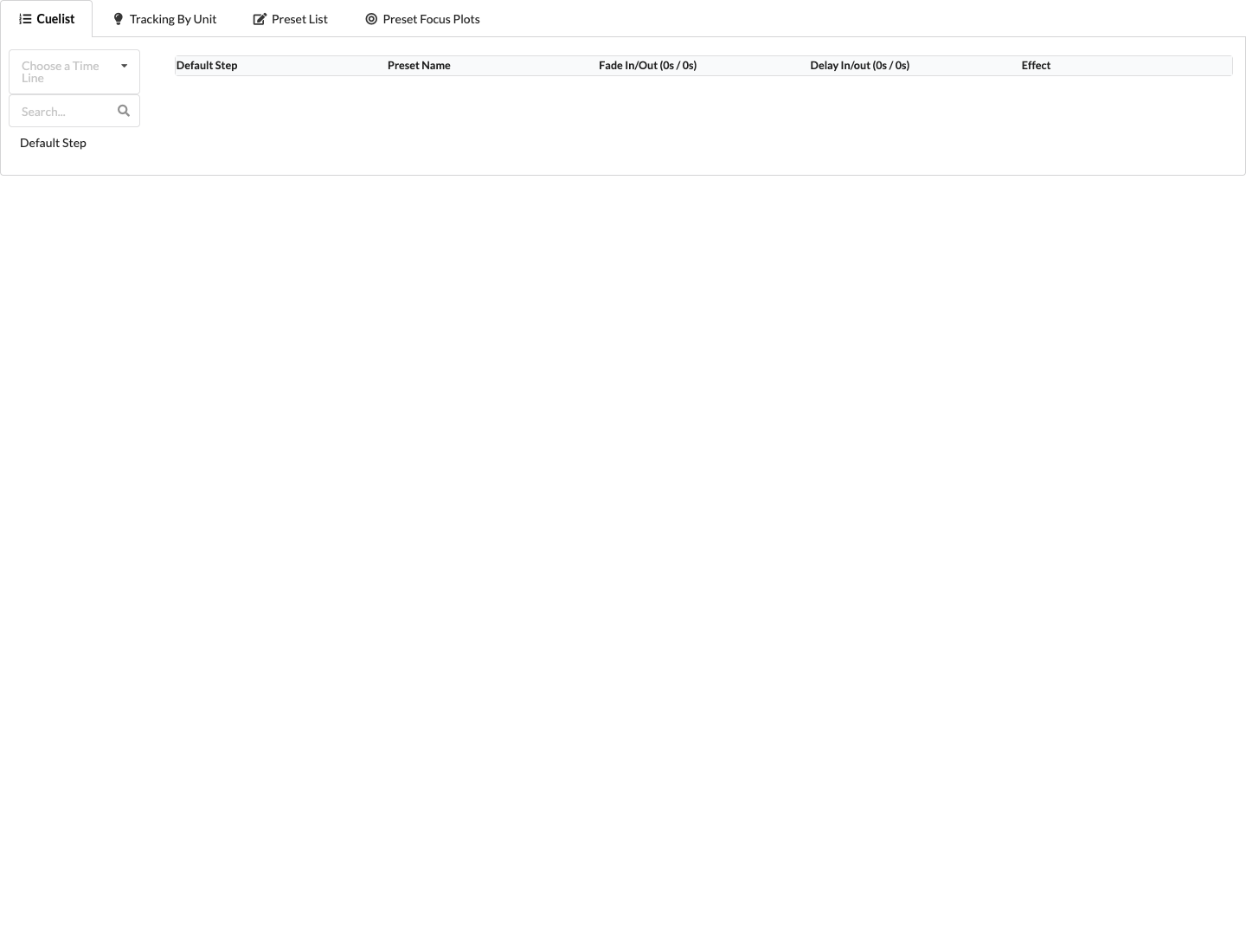
If the Cue List is empty, check whether the selected timeline contains steps. Details about the four tabs and their limitations are in Animation and Light Plot.
To import cue data from grandMA3, use File → Import → Import MA3 Cue... in the desktop app. The matching fixtures must already be in the drawing. If the XML file contains individual cue data instead of a sequence, at least one timeline must also already exist. The import does not add fixture geometry and currently transfers only dimmer, pan, tilt, and RGB values, as well as referenced presets. The steps are described in Production Assist for grandMA3.
To output other planning documents as a table or PDF, use Worksheets or Label Creation. To access paperwork online, transfer the drawing to an online project; local changes are visible there only after they have been transferred.