

This example shows how two people work separately on an online project: Person A plans the rigging in the Production Assist desktop app. Person B works on the lighting plan with Production Assist for Vectorworks. Both transfer their changes to their own workspaces. The shared master plan changes only when the workspaces are merged. The Online Workflow guide explains the individual dialogs and access rights.
You need two Production Assist accounts, a connection to the server, and an online project that both people can access. Both need Edit rights to create workspaces and transfer changes. Approvals are required only if the project uses a Review Template. The integration guide explains how to open the Vectorworks plug-in.
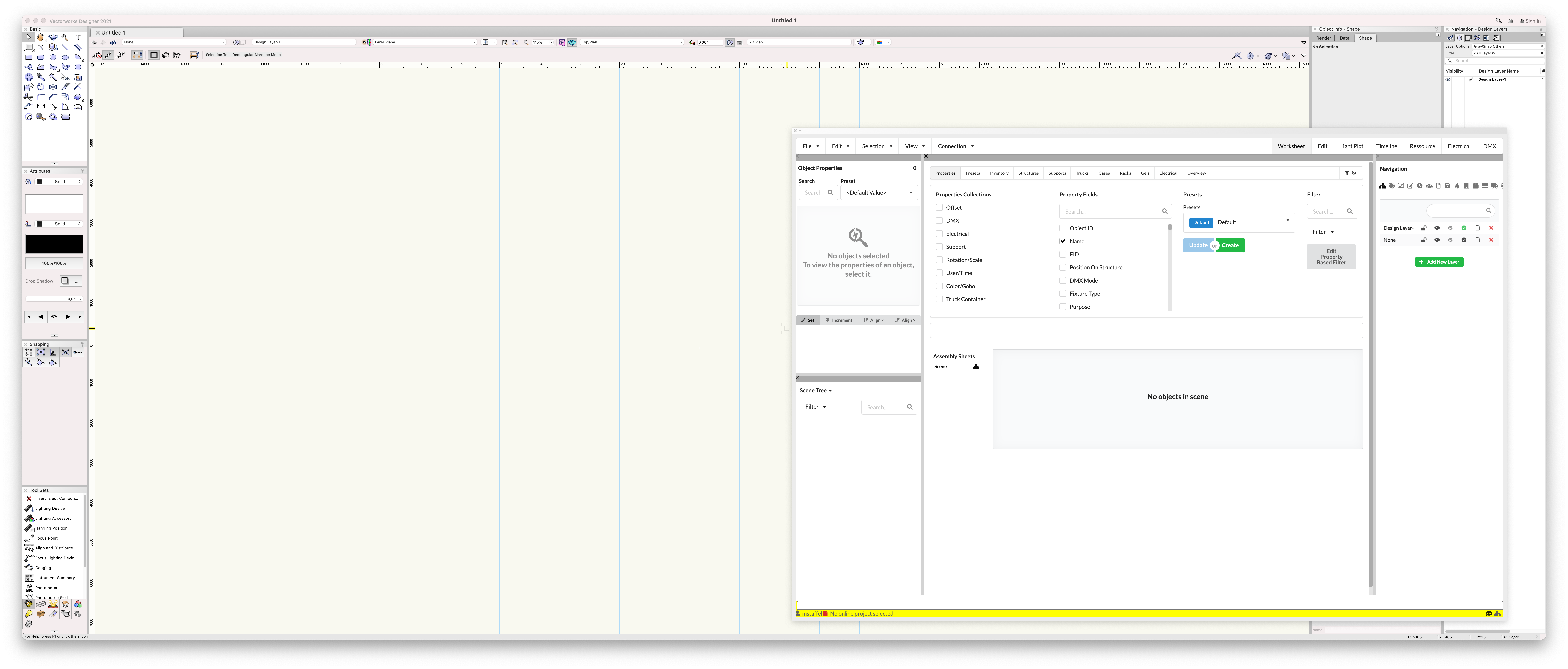
The older screenshot shows the Production Assist palette in Vectorworks 2021. It shows an empty drawing and is for reference only; the text describes the menu labels and workflow.
Person B creates an online project on the project website and adds Person A under Project Members with Edit rights. If approvals are required, Person B selects an approval template and checks that the intended people are project members.
Person B prepares the initial drawing, for example with an imported stage DWG, a truss line, and spotlights. Person B links the drawing to the online project and transfers this initial state. On the project website, Person B checks that the state is visible in the desired workspace. This example uses the master as the shared starting point.
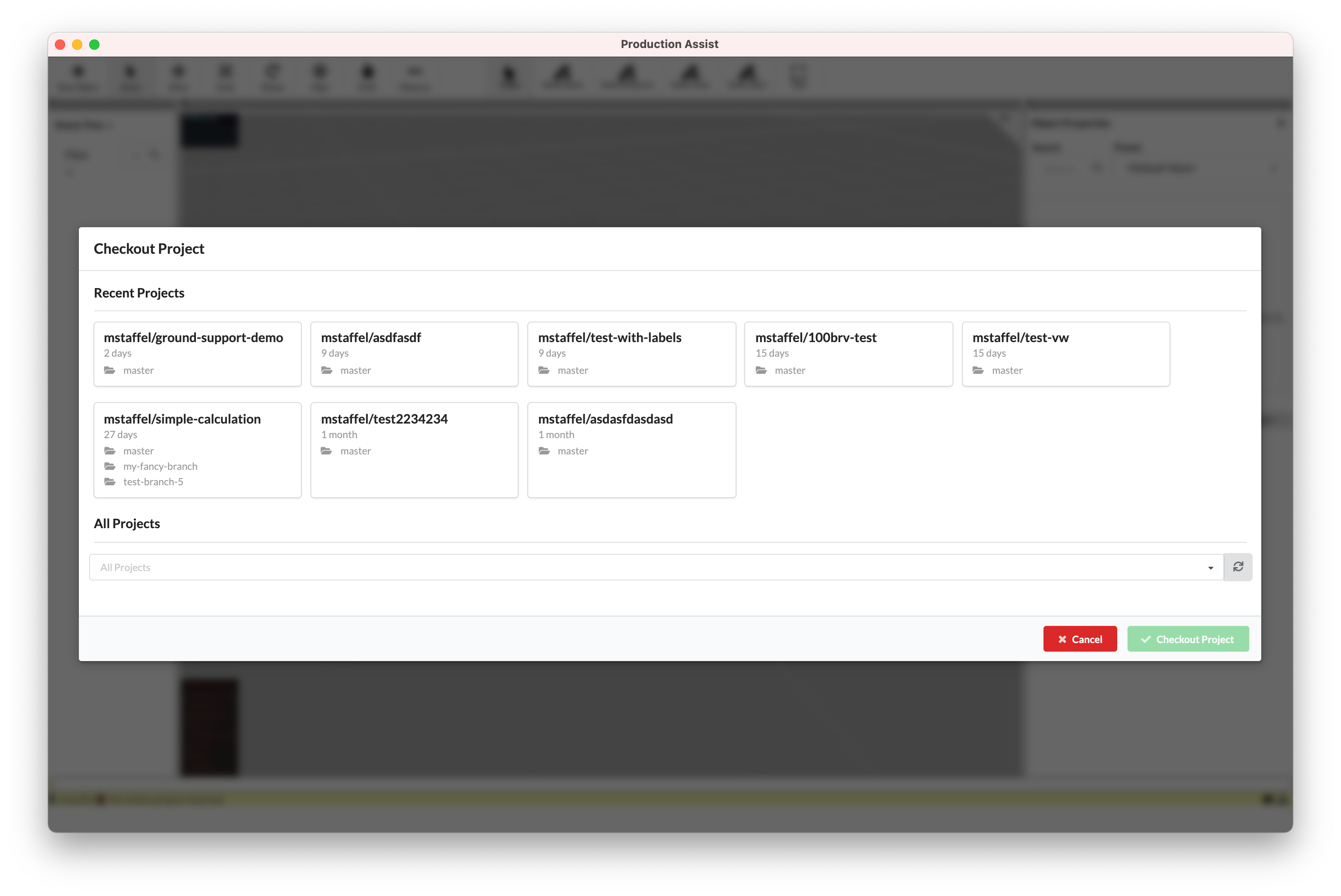
Person A selects File → Open from PA Cloud... in the desktop app and opens the project's master. The dialog shows recently changed projects and a selection of all accessible projects. The screenshot shows an older English interface; the current workflow is described under Check out a project.
Person A creates the rigging-start workspace using PA Cloud → Create Workspace. Person B creates a separate workspace for the lighting plan, for example licht-start. Both workspaces start from the selected initial state. Changes in a workspace do not yet appear in the master.
rigging-start workspace, Person A adds the suspension points and a prerig to the truss line. Person A creates the required worksheets, such as a material overview for the trusses.licht-start workspace, Person B adds fixture numbers and the lighting and power patch. Person B creates a worksheet for the lighting plan if needed.The project website and shared project links and QR codes show only transferred online states. Recipients need project access unless they have a public share link.
A third person could then prepare a light show in grandMA3. However, this repository does not document checking out, creating a workspace, committing, or reviewing a change request for the current grandMA3 integration. Plan these steps only after testing the installed integration. The MVR workflow describes file-based exchange with applications that support MVR.