

Production Assist for Vectorworks is a plugin for Vectorworks that integrates directly into Vectorworks.
A web palette/window displays the user interface directly in Vectorworks. Both are bidirectionally connected. All changes made in Vectorworks appear directly in the web palette and any changes made in the Palette will update the Vectorworks drawing.
Thus, all functions of Production Assist are also available in Vectorworks.
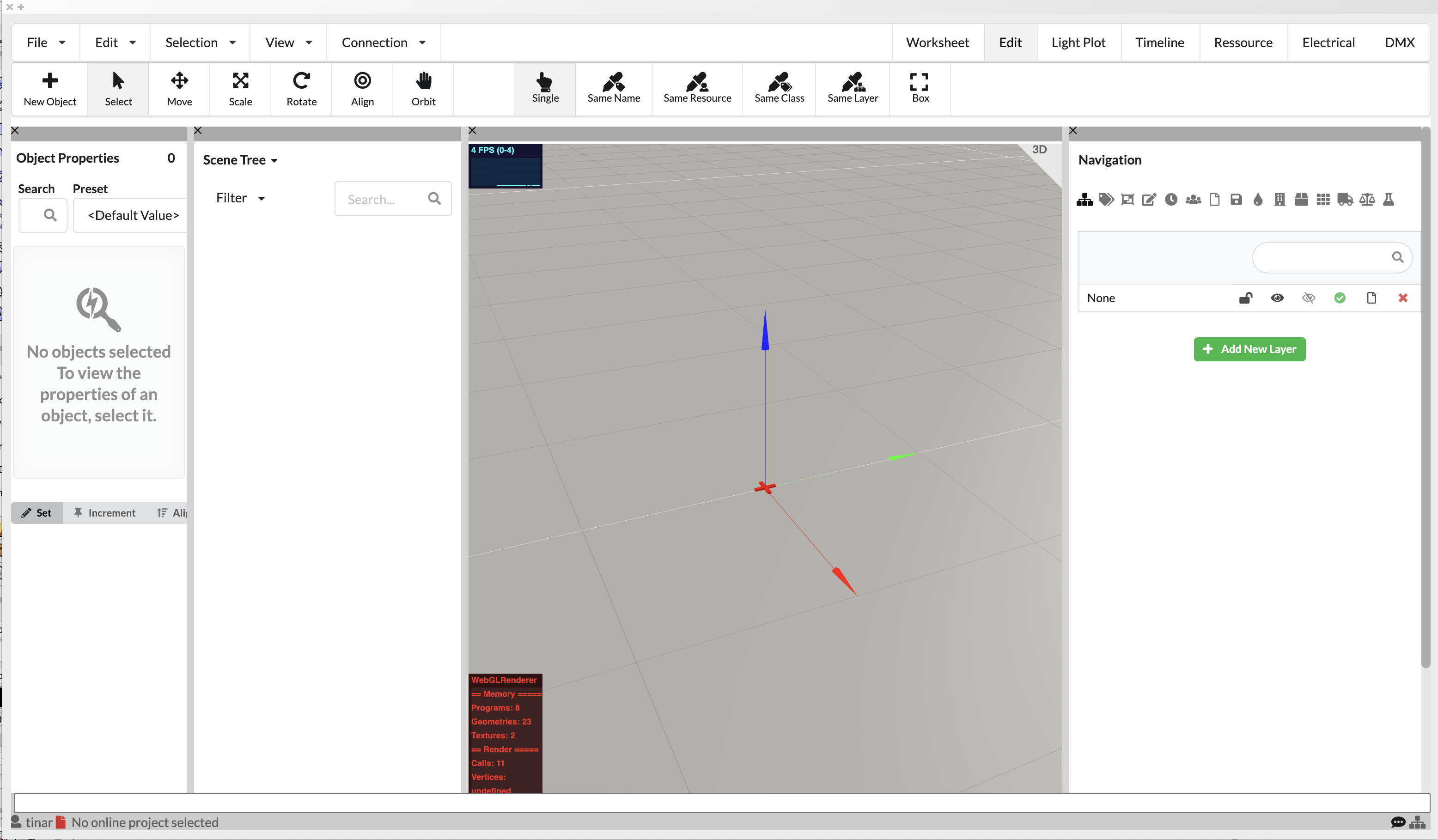
Download the ZIP file for Windows. This will be automatically stored in your download folder. Unzip this file.
Copy all the files contained in the ZIP folder.
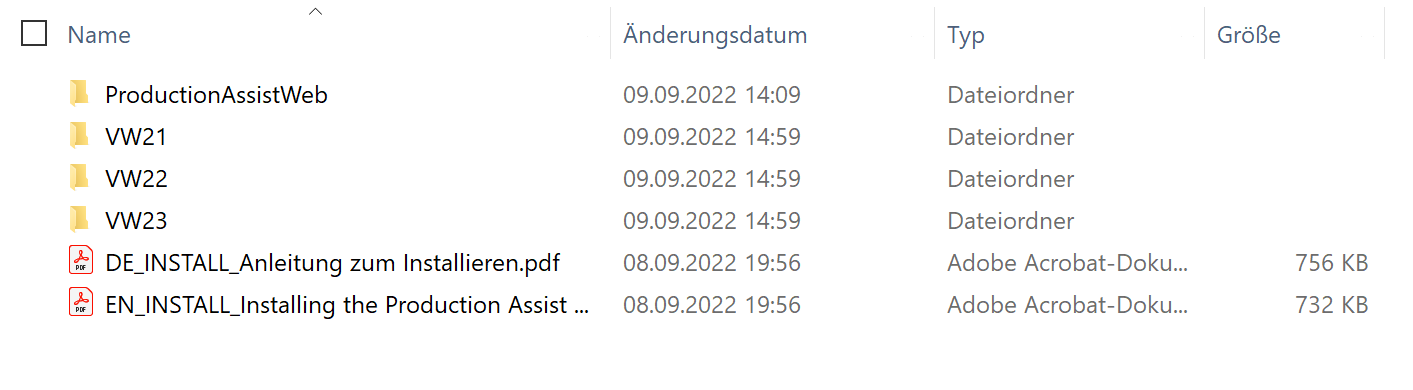
Add them to your Vectorworks user folder located in the directory path: Users/"yourUsername"/AppData/Roaming/Nemetschek/Vectorworks/"yourVectorworksVersion"/Plug-Ins.
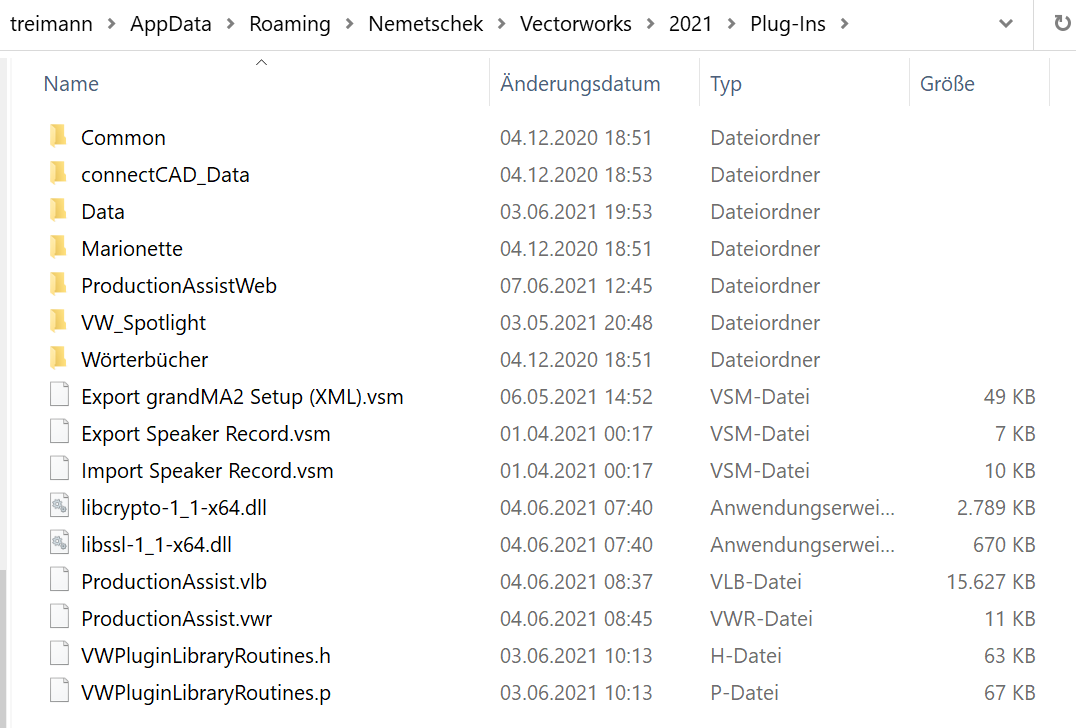
Now you can start Vectorworks.
Download the ZIP file for MacOS. This is automatically stored in your download folder.
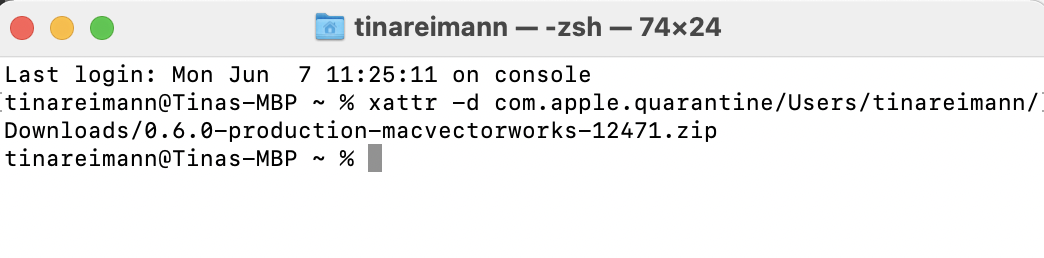
ATTENTION: Apple flags downloads that do not come from its App Store with a quarantine flag. This must be temporarily removed manually. To do this, please open the terminal program on your Mac and enter the following: "xattr -d com.apple.quarantine" and then a space. Then drag and drop the downloaded zip file into the terminal and then click Enter.
Now click on the ZIP file in the download folder by double-clicking to unzip the file. Now select the folder with your installed Vectorworks program files and copy the file ProductionAssist.vwlibrary.

Go to your Vectorworks home folder, which is located in the directory path /Library/Application Support/Vectorworks. Select your Vectorworks version and paste the ProductionAssist.vwlibrary file into the Plug-Ins folder.
Now you can start Vectorworks.
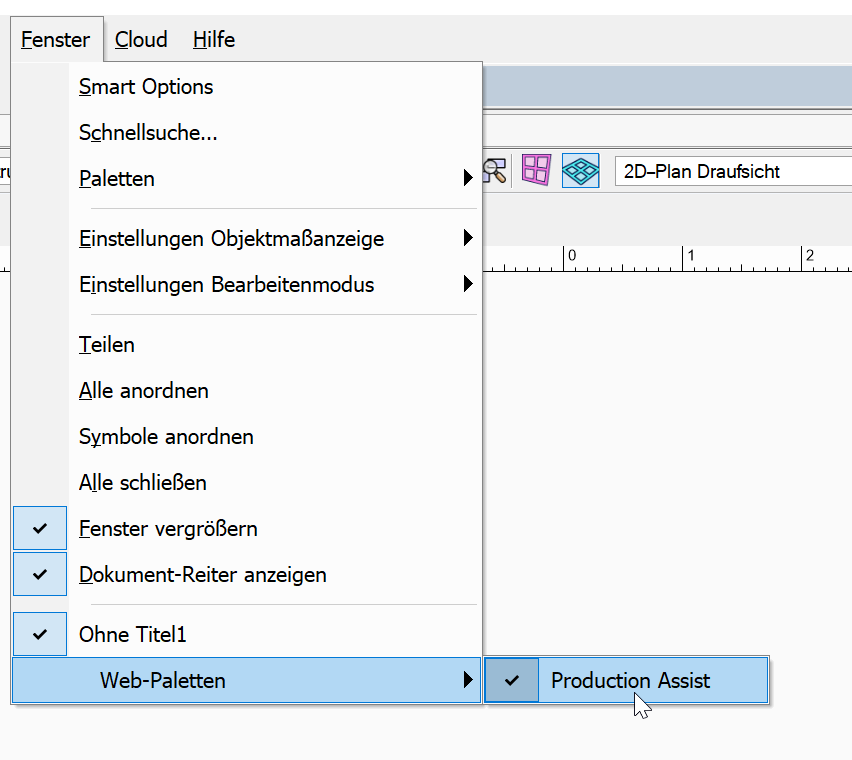
Start Vectorworks and open a new or existing drawing. After that, you will find the Production Assist Window in Vectorworks under the menu item "Window" > "Web Palettes".
A window will open. If you are connected to the Internet the first time you open it, the Production Assist Log-In window will appear. Enter your access data to connect to the online server.
If you do not have an Internet connection, no login window appears. Instead, the user interface will open immediately. However, you will not have access to the Production Assist Library.
The Production Assist Window opens directly in the Worksheet View. To access the general user interface, click on the "Edit" tab in the upper right corner.
A brief overview of the different areas of the user interface and what can be found there is summarized in the chapter Benutzeroberfläche) zusammengefasst.
You can link the fields of intelligent Vectorworks symbols such as spotlights or trusses with fields in Production Assist. Most of them are already linked correctly, but you have to assign some of them manually, for example, custom fields manually. To do this, click on Resource in the menu bar and then on the tab VW Field Map.
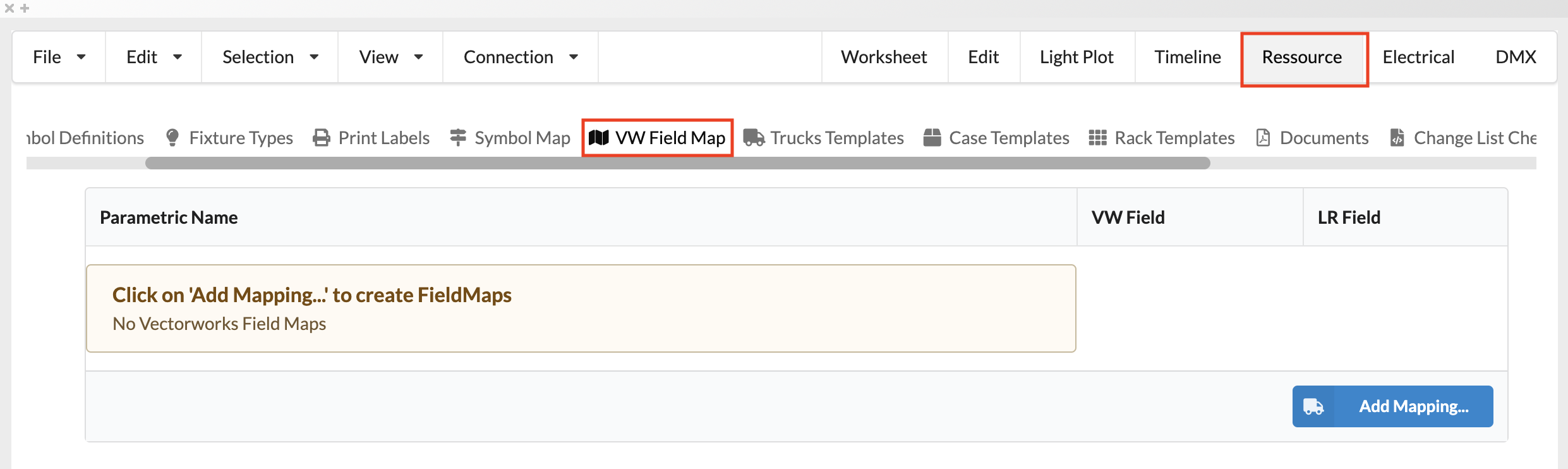
Click the blue Add Mapping button. A window opens where you can select the object type (Parametric Name) and the desired Vectorworks field (VW Field), as well as the field to which it should be linked in Production Assist *(LR Field).
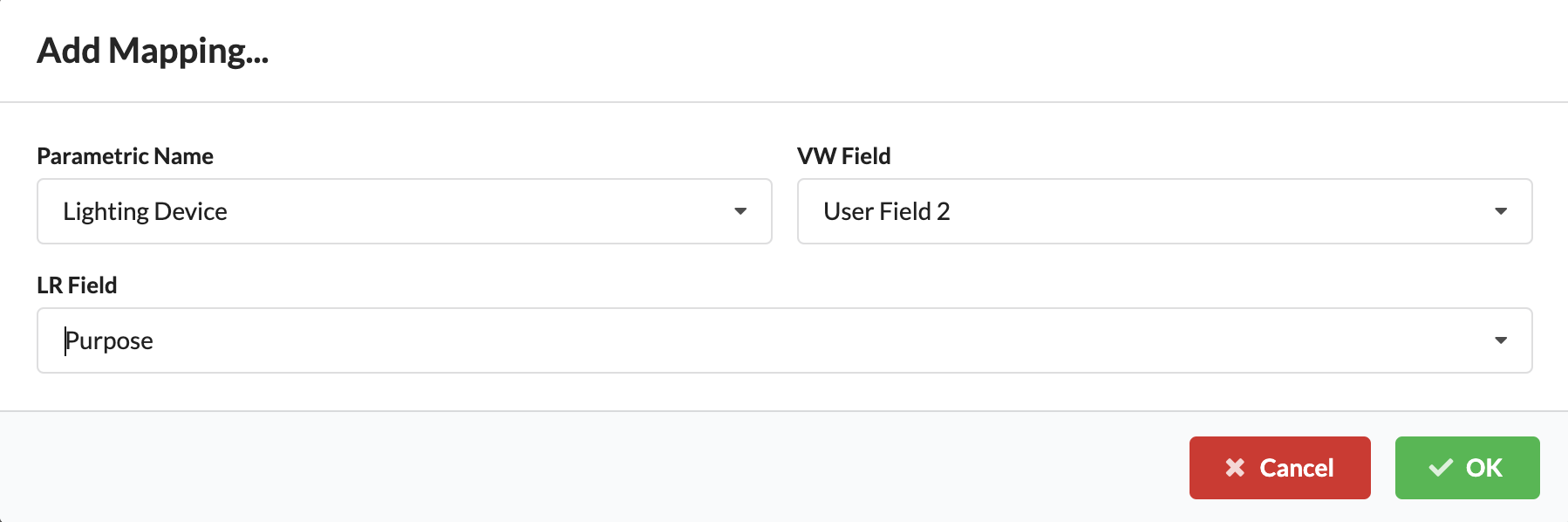
Now the fields are linked. All changes in the Vectorworks plan are transferred to Production Assist and vice versa. After you’ve completed linking fields, you now have various options for continuing your work.