

You can open online projects in a browser on the Production Assist website. There you can view the transferred project state and, depending on your access rights, switch branches, review changes, or edit the project. For collaborative editing and transferring changes, see the Online Workflow.
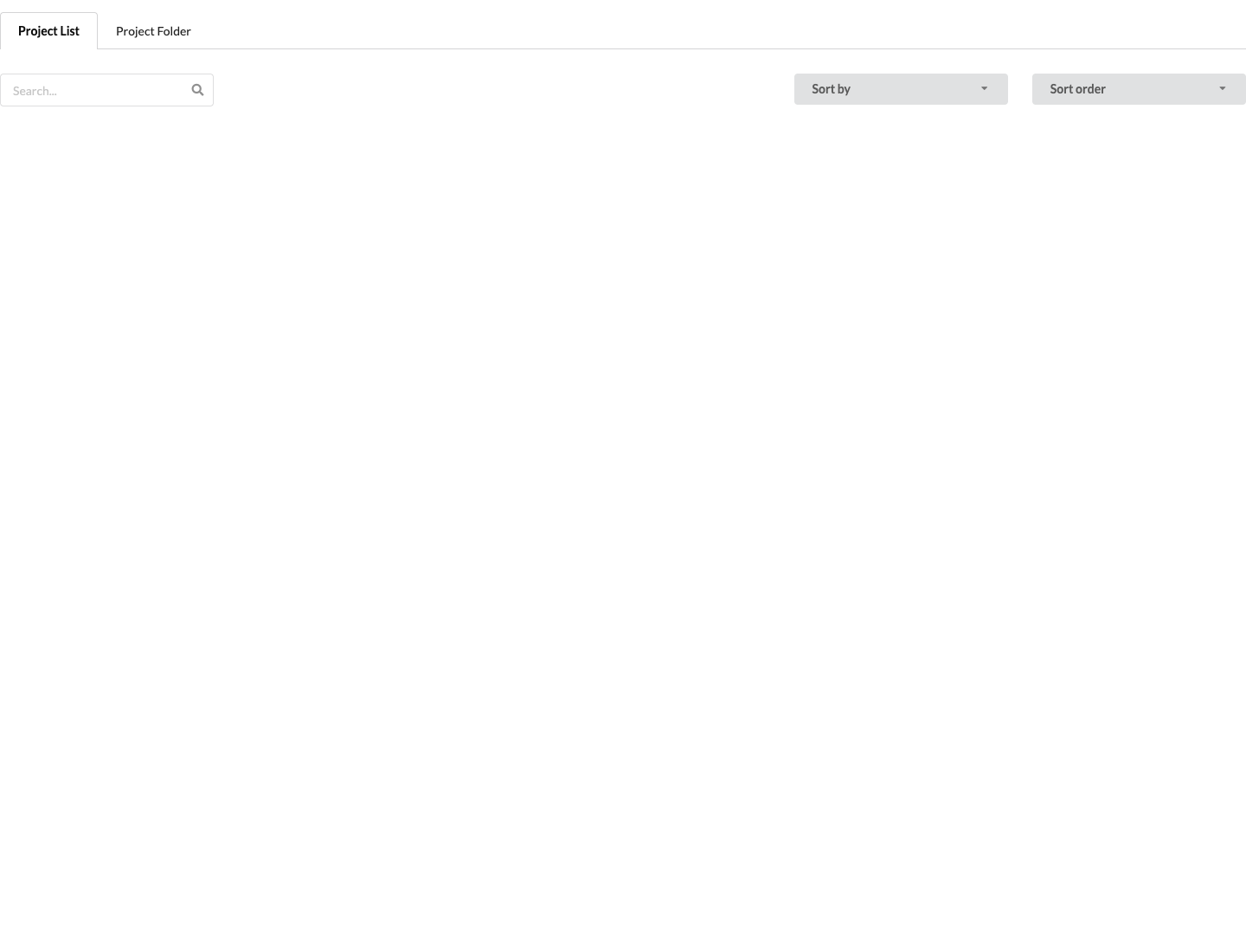
On your user page, open Projects to see the project list. Use the search field to filter projects by name. Sort by lets you choose whether to sort by the most recent change or creation date; With order sets the order. Use ProjectList and Project Folder to switch between list and folder views. Which projects appear depends on the selected account and your access rights.
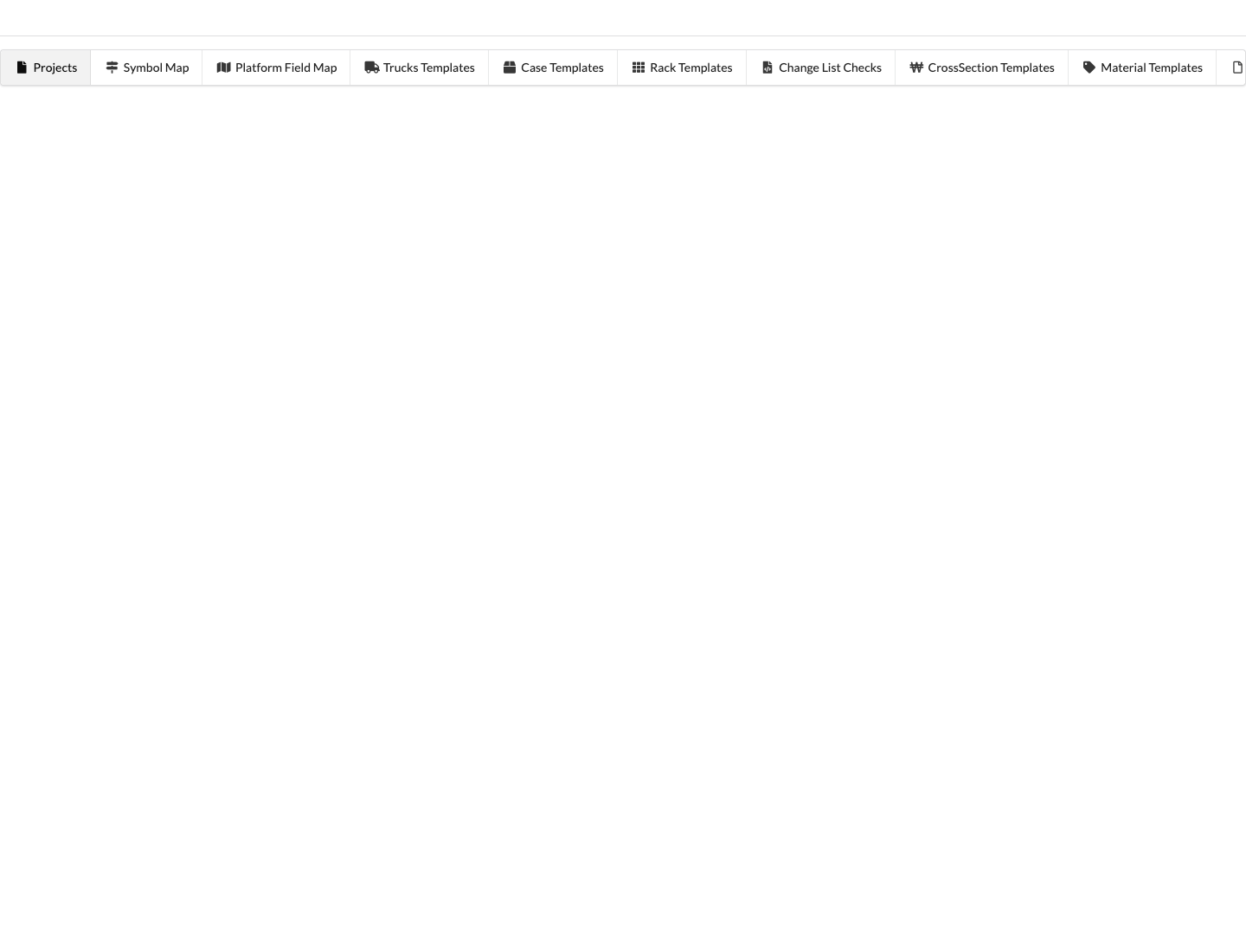
The user-page navigation also provides account-wide areas such as Symbol Map, Field Map, templates, and Change List Checks. These areas belong to your user account. Data, Change Request, and Settings appear only after you open a specific project.
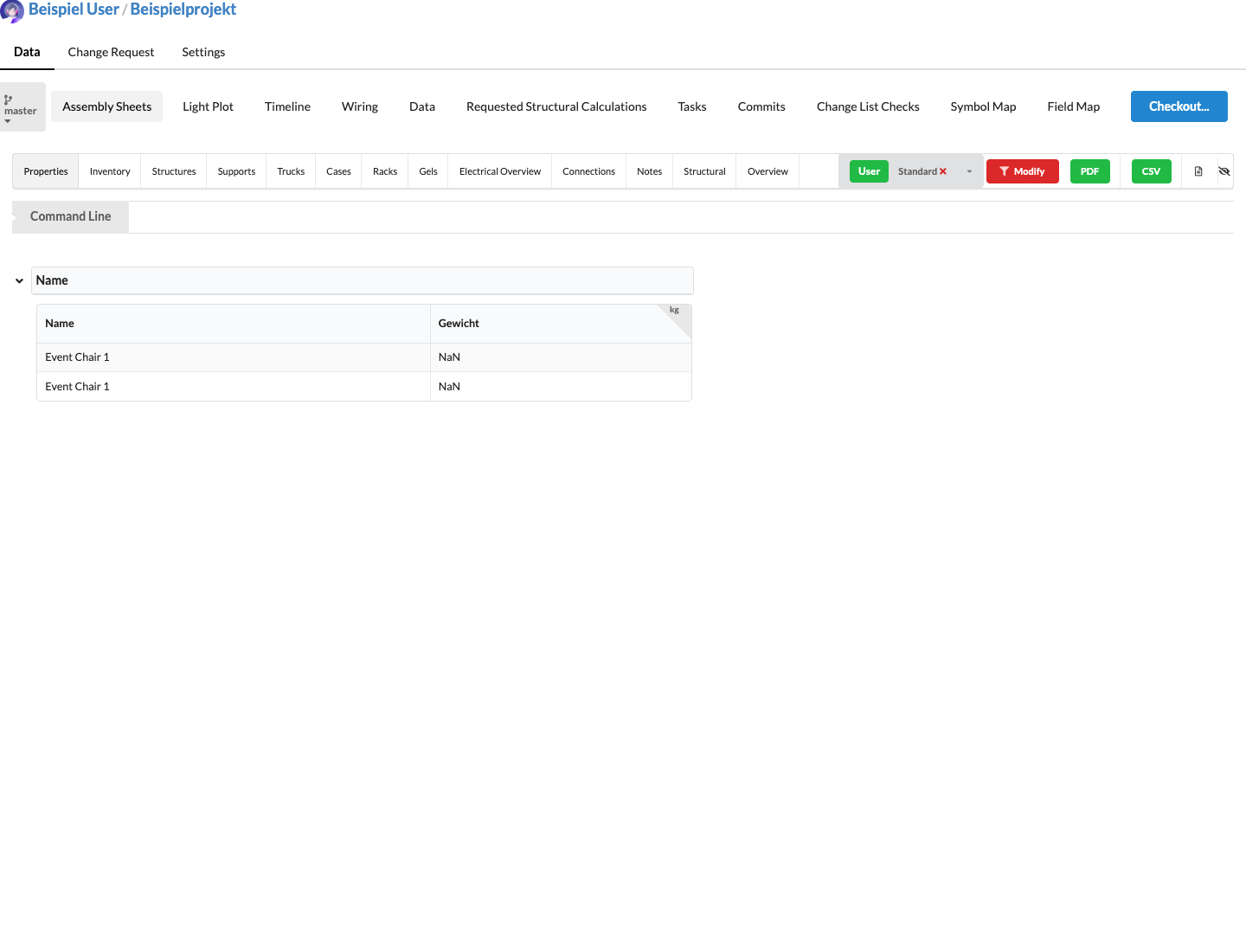
Open the project you want on the website. In the project view, the header shows the account and project name. Use Data, Change Request, and Settings to switch between project data, change review, and project settings. Under Data, the branch selector and the contents of the selected branch appear below.
In Data, the selector on the left shows the current branch, for example master. Open the menu to choose another available branch. Use the search field to find a branch by name. Closed branches are not available in the list.
If you have write access, you can create a branch with Create Branch. Changes made there remain separate from the master at first. To add them to the shared project state, they must be reviewed and then merged. See Working with Branches for the steps.
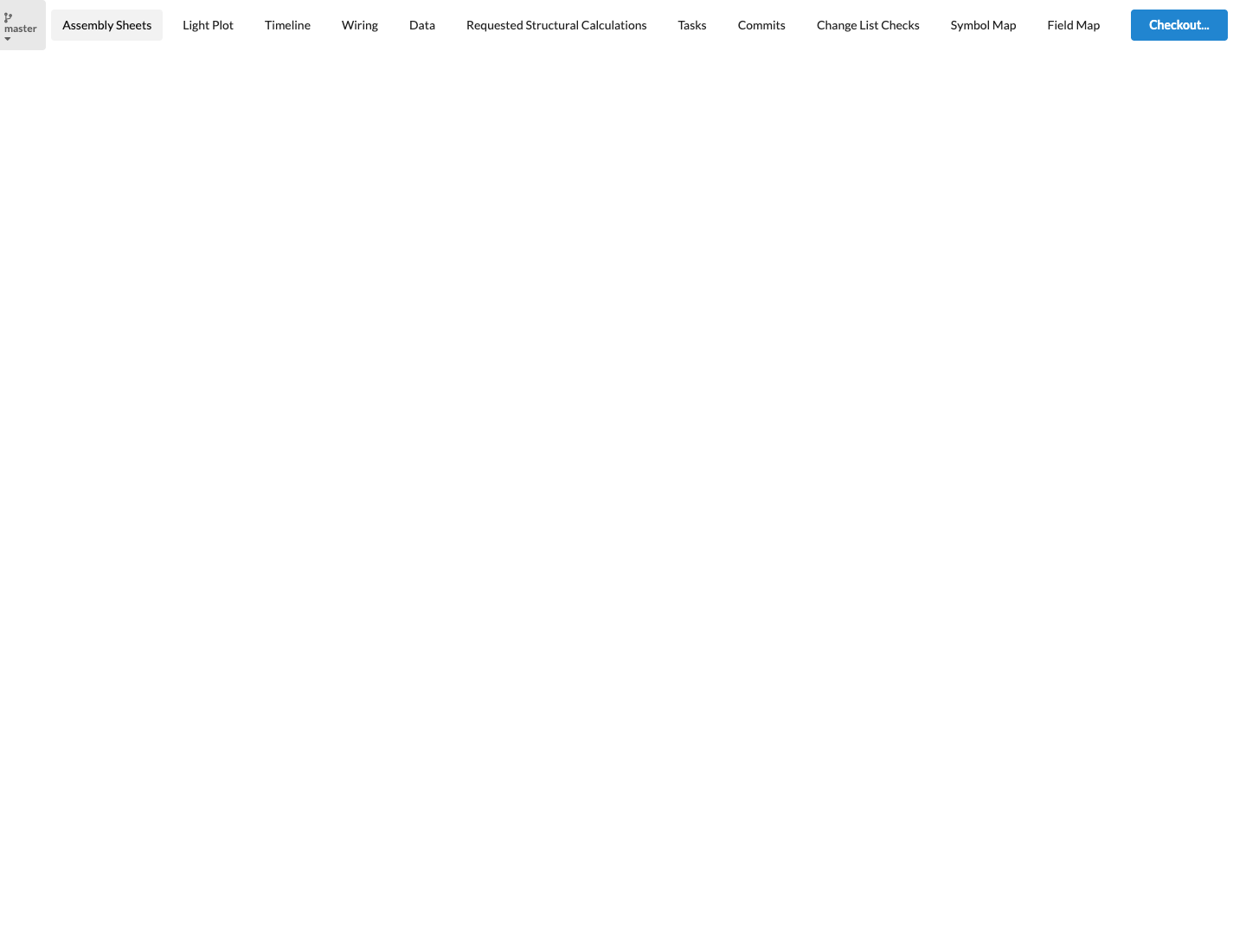
Depending on your project access and the available project information, you can open these areas in the data view:
| Area | Contents |
|---|---|
| Assembly Sheets | View the worksheets for the selected workspace. |
| Light Plot | Open the workspace's light plot. |
| Timeline | View project timelines. |
| Wiring | Open the project's wiring view. |
| Data | Open other project data and overviews. |
| Requested Structural Calculations | Open requested structural calculations for the project. |
| Tasks | View project tasks. |
| Commits | View commits and changes transferred to the workspace. |
| Change List Checks | View the checks available for the workspace. |
| Symbol Map and Field Map | Open the project's symbol and property mappings. |
The header also provides Checkout..., Share..., and Edit.... Checkout... opens the project in the Production Assist desktop app. Share... opens the sharing options. Edit... opens the online editor. Available actions and project areas depend on your sign-in status, project access, and write permissions. With a public share link, some areas and changes may be restricted.
If you have closed all docked tabs in the online editor, Reset UI appears in the empty area. Use it to restore and save the editor's default layout. This also applies to the worksheet view with docked tabs. For details, see Restore Default Layout.
For more information about project access, share links, and change requests, see Online Workflow.