Checking Connections in the Structural System#
When a system does not behave as expected in the structural analysis, the first question is often: Which components are actually connected to each other in the calculation? In Production Assist, you can quickly check this in two ways: using the deformed shape in the workload display and using the automatic selection of all rigidly connected objects.
These two checks are especially useful when individual trusses, supports, or loads visually appear to be part of the structure but are not calculated together with the rest of the system.
Method 1: Check the Deformed Shape in the Workload Display#
The fastest graphical check is the deformed shape of the calculated system. It is shown in green in the results display and indicates how the system deforms under load.
- Run the structural calculation.
- Select the Calculation Results object in the Scene Tree.
- Enable Show Workload in the Object Properties.
- Observe the green deformed shape in the Renderer.
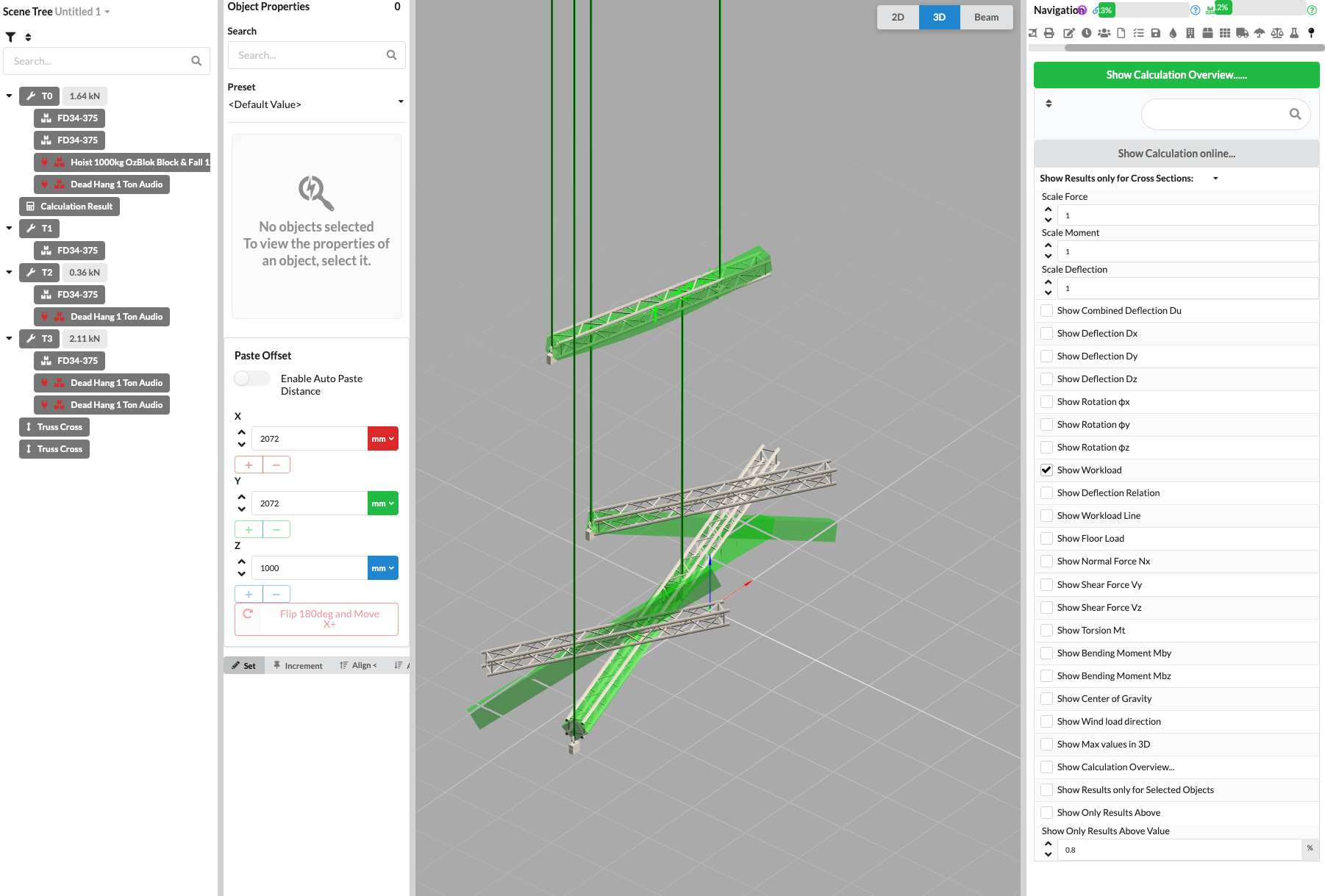
In the example, the components shown in green deform together. This lets you see immediately which parts currently belong to the connected structural system.
If no green deformed shape appears, first check whether the calculation completed successfully and whether the Calculation Results object is selected.
What to look for:
- Components that visibly deform together belong to the same structural system and are connected to each other for the calculation.
- If part of the structure behaves separately or does not deform together with the rest of the system, a connection is usually missing in the model.
- Interrupted or separate green areas often indicate that objects are close to each other but are not rigidly connected.
This method is particularly helpful when you want to check within a few seconds whether a truss run, frame, or ground-support component works together with the rest of the system.
Method 2: Use Rigging > Select System Objects#
To see exactly which objects Production Assist recognizes as a connected system, use the Rigging > Select System Objects command.
- Select a truss, support, or other structural object in the area you want to check.
- In the Menubar, choose Rigging > Select System Objects.
- Production Assist automatically selects all objects that are rigidly connected to this object and calculated together with it.
- In the Scene Tree and Renderer, check whether all expected components have also been selected.
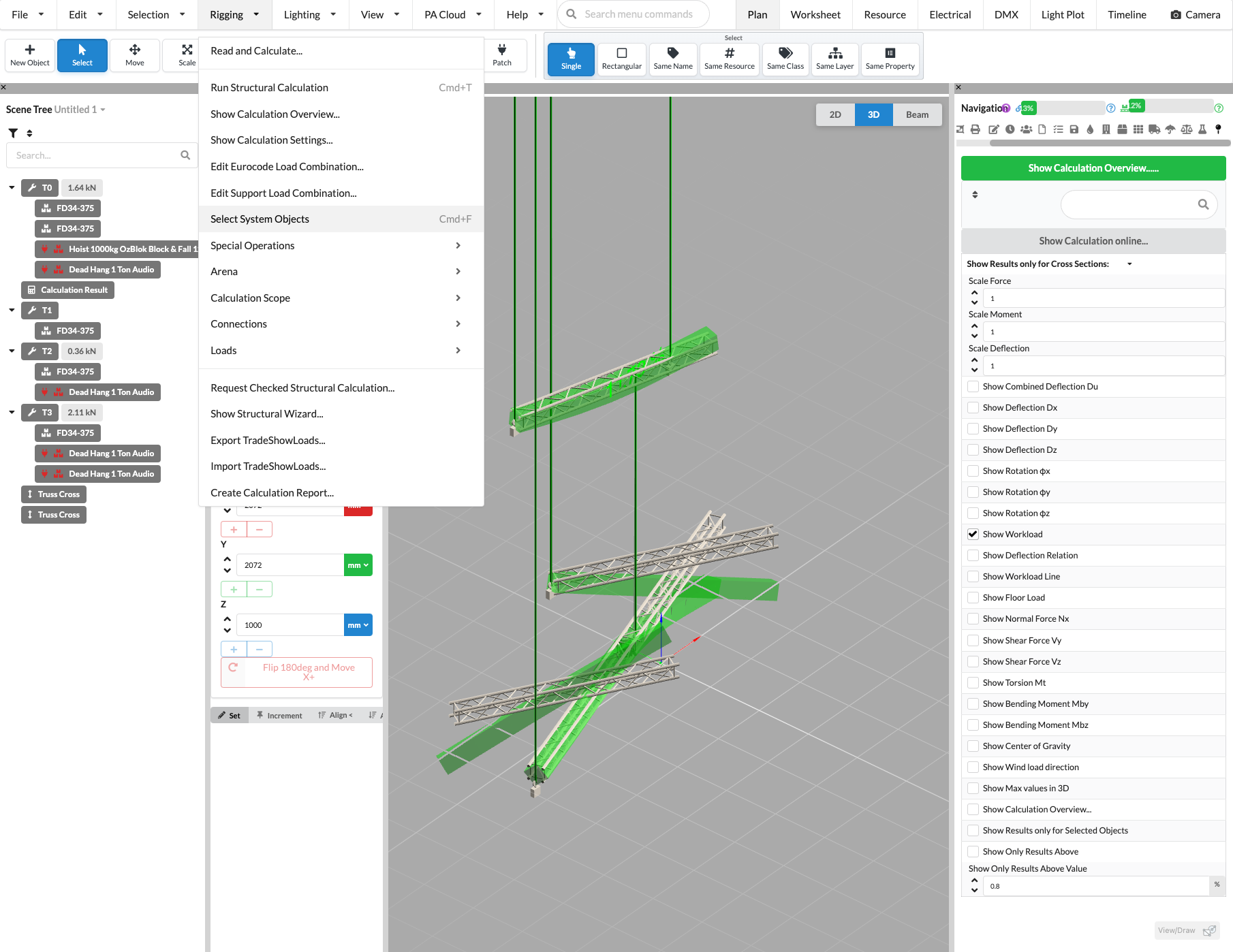
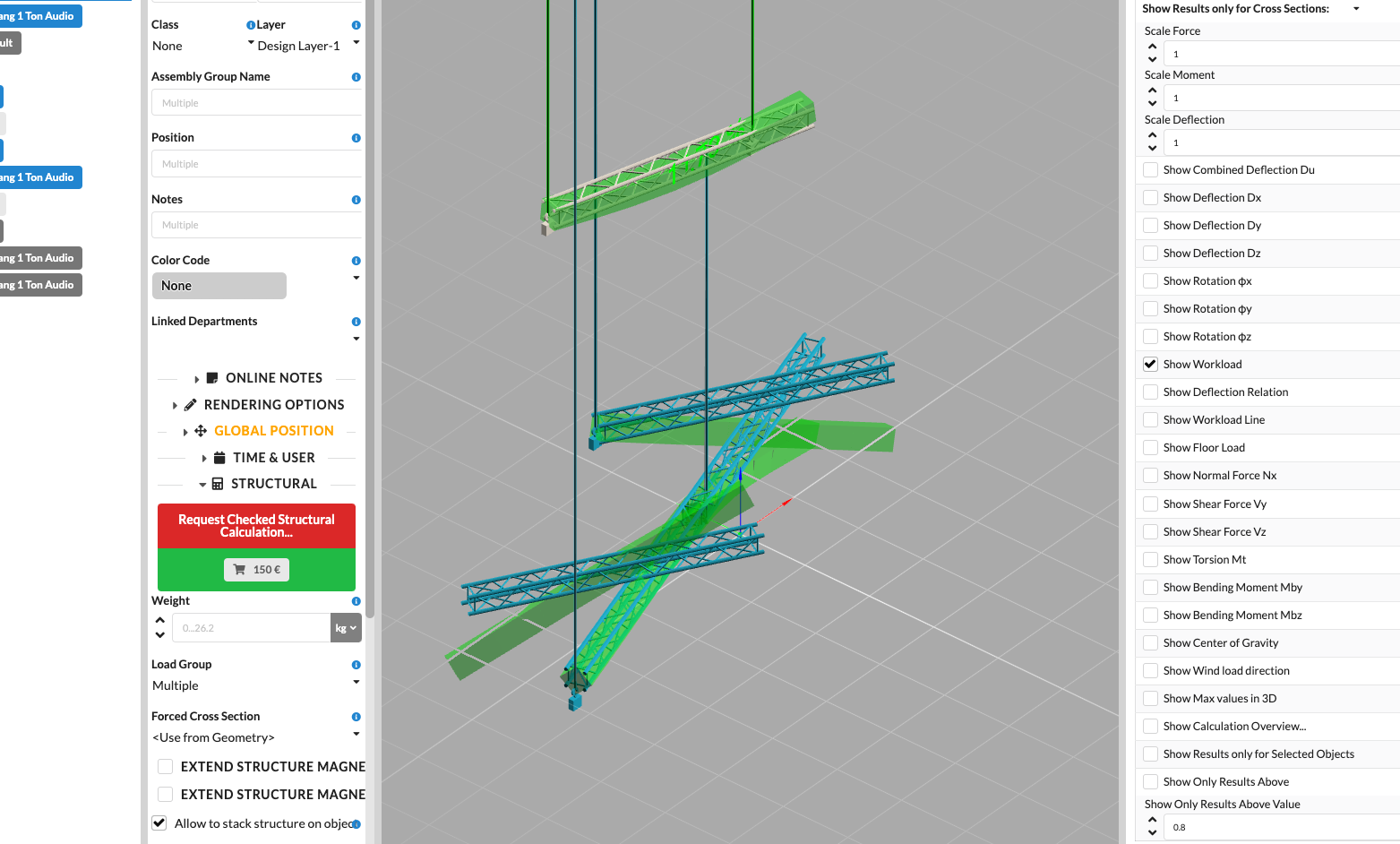
In the screenshot, the components that Production Assist recognizes as connected are highlighted in blue. This lets you quickly check whether all expected trusses, connections, and supports are actually part of the same system.
If expected objects are not selected, this is a clear indication of a missing or faulty connection. In particular, check:
- whether the objects are snapped together correctly,
- whether the appropriate connection or truss component was used,
- whether the components are at the correct position and height,
- whether supports, rigging points, or intermediate components are actually connected to the structure.
When to Use Which Method#
- The deformed shape is the fastest visual check for an initial overview.
- Select System Objects is the more precise test when you want to verify unambiguously that objects belong to a structural system.
- Combining both methods is the most reliable approach: first check graphically, then use the automatic selection for confirmation.
Typical Signs of Connection Problems#
- A truss segment appears to remain stationary during deformation while the rest moves.
- An object is not selected by Select System Objects.
- Loads or supports visually appear to belong to the structure but are not included in the expected system.
- The calculation returns unexpected results even though loads and supports are present.
This check shows whether objects are calculated together in Production Assist. It does not replace a professional structural assessment, but it is a very quick troubleshooting step.
Further Information#
For more information about the basics of calculations, see Static Calculations.