

This guide takes you from the prerequisites to a verified connection between Production Assist and AutoCAD or BricsCAD. It covers installation and the one-time technical setup only. Preparing custom blocks, symbol maps, layer mappings, and running an initial structural calculation are outside the scope of this quick start.
Last updated: October 20, 2026
After completing this guide:
| Phase | AutoCAD | BricsCAD |
|---|---|---|
| Basic installation | Install the desktop app; AutoCAD 2024 can be installed through the app, and other available versions from the download package | Install the desktop app and select the matching BRXYY plugin |
| Load the module | On Windows, load ProductionAssist.arx with APPLOAD and add it to the startup suite | Load the BRX/MRX module with APPLOAD and enable Autoload |
| Set up the interface | With a drawing open, the tools load automatically: the Windows ribbon or the Mac menu and toolbars | The tab loads automatically; then add ProductionAssistLibrary |
| Check the connection | Set the desktop app to Plugin and select Enable PA in AutoCAD | Set the desktop app to Plugin and select Enable PA in BricsCAD |
Install all required programs first, then check their versions.
Important: The desktop app provides the shared user interface and required resources. The CAD plugin adds integration with AutoCAD or BricsCAD. Both components are required for the complete workflow.
Enter ABOUT in the AutoCAD or BricsCAD command line. Note the application's major version.
Each CAD major version requires its own plugin module. The identifier in the download must therefore match the installed host version:
| Identifier | Host application | Package platforms in the current distribution |
|---|---|---|
ARX24 | AutoCAD 2024 | Windows, macOS |
ARX25 | AutoCAD 2025 | Windows, macOS |
ARX26 | AutoCAD 2026 | Windows, macOS |
BRX21 | BricsCAD 21 | Windows, macOS |
BRX22 | BricsCAD 22 | Windows, macOS |
BRX23 | BricsCAD 23 | Windows |
BRX24 | BricsCAD 24 | Windows |
BRX25 | BricsCAD 25 | Windows, macOS |
BRX26 | BricsCAD 26 | Windows, macOS |
BRX27 | BricsCAD 27 | Windows, macOS |
Example: For AutoCAD 2025, use the
ARX25folder; for BricsCAD 26, useBRX26. Do not load a module for a different major version.
The table lists the currently intended major versions. The desktop app's installation dialog only offers versions detected on your computer for which a package is available on the server. Availability on the download page also depends on the operating system.
There are two installation methods:
Close AutoCAD and BricsCAD before installing so files can be updated without conflicts. Restart the CAD application only after installation is complete.
The two CAD-specific installation commands are in the Help menu. Choose the command for your installed host application.
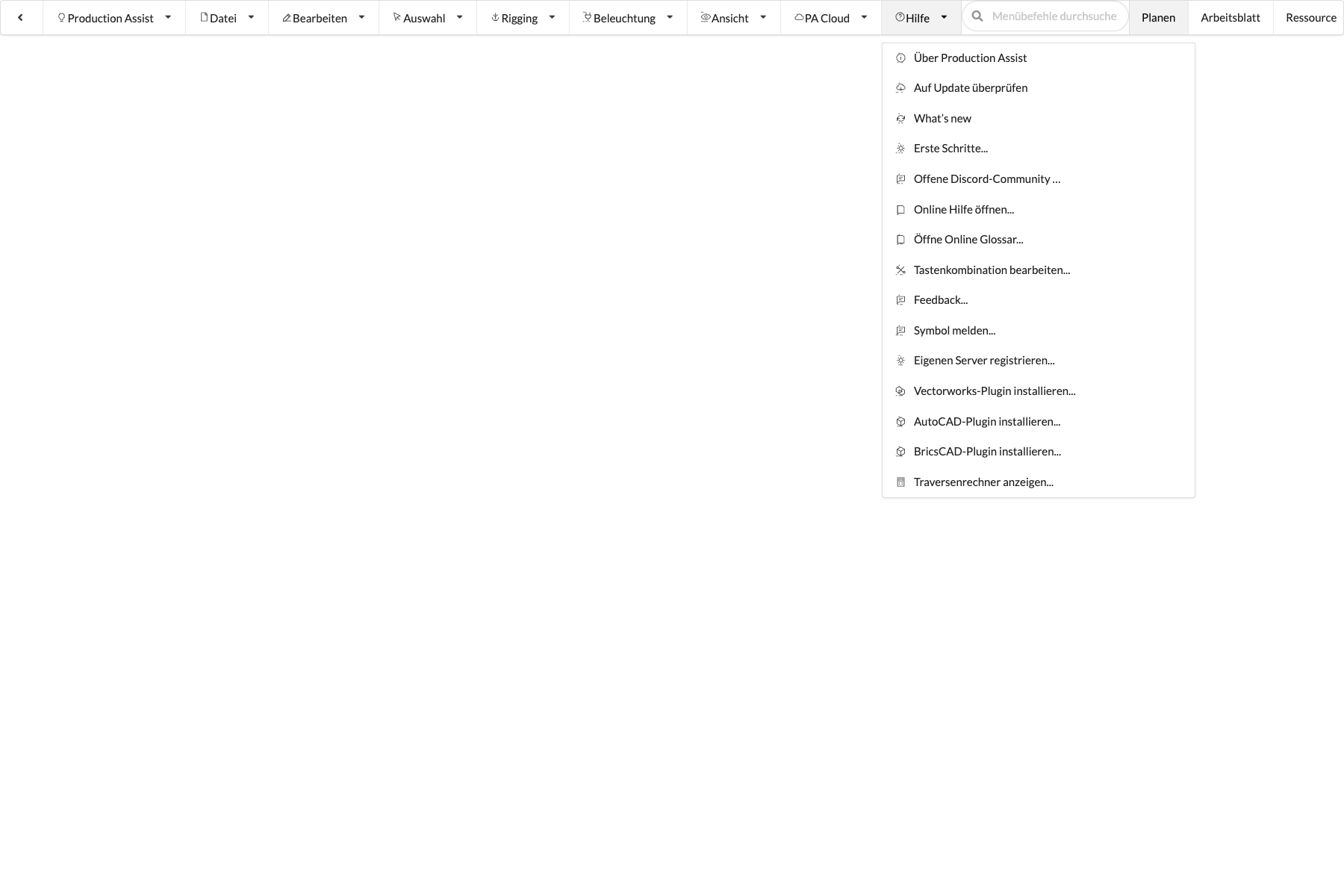
The current installation dialog lists AutoCAD 2024. For AutoCAD 2025 and 2026, use the matching download package and manual installation in sections 4 and 7. The download packages include ARX24, ARX25, and ARX26 for Windows and macOS.
In the dialog, you can select only plugins whose host application was detected by the desktop app and for which a package is available on the server.
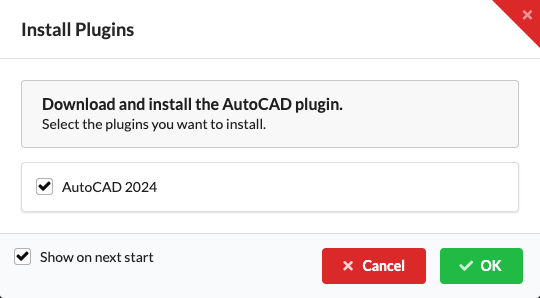
The dialog shows the detected AutoCAD version and downloads the matching package. Other versions are not offered as selectable targets if no host was detected or no package is available.
If you later need the location for APPLOAD, look for ProductionAssist.arx or the ARXYY folder in the local Production Assist data folder:
%APPDATA%\productionassist~/Library/Application Support/productionassistThe exact subfolder may depend on the desktop app version and operating system.
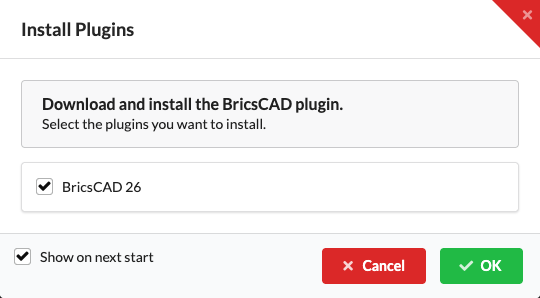
Depending on the version, the automatically installed BricsCAD files are in these folders. YY stands for the major version:
| Contents | Windows | macOS |
|---|---|---|
| Plugin module | %APPDATA%\productionassist\brx_plugin\BRXYY\ | ~/Library/Application Support/productionassist/brx_plugin/BRXYY/ |
| Component library | Downloaded separately through Install Library to a destination folder of your choice | Downloaded separately through Install Library to a destination folder of your choice |
The module filename includes the version identifier, for example:
libProductionAssistBRX26.brx for BricsCAD 26 on Windows,libProductionAssistBRX26.mrx for BricsCAD 26 on macOS.Use this section only if you are not installing the plugin through the desktop app.
ARX25 or BRX26.Not recommended: Do not store the active plugin on a network drive or in a folder synchronized by Dropbox or a similar service. CAD applications load parts of native modules on demand; network and synchronization paths can therefore cause long load times or dependencies that do not load completely.
A local application folder already used for other trusted CAD extensions is suitable. In AutoCAD, you can also use a separate local folder and configure it as a trusted location.
After copying the files, register the module in BricsCAD once.
APPLOAD in the command line and press Enter.BRXYY folder for your BricsCAD version.BRXYY in its name and the .brx extension,BRXYY in its name and the .mrx extension.Autoload or AUTO for this entry. This loads the plugin automatically every time BricsCAD starts.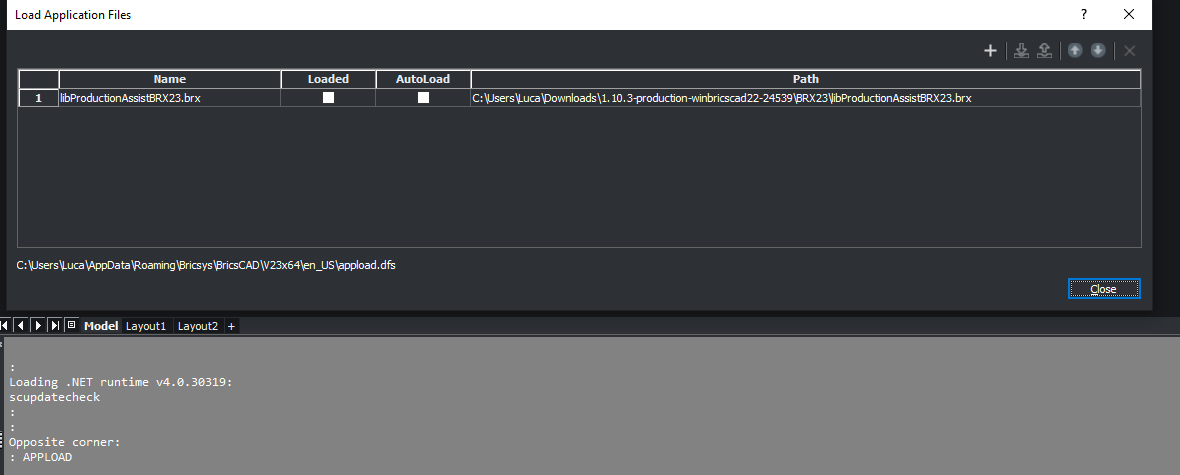
After it loads successfully:
Production Assist Ready or Ready.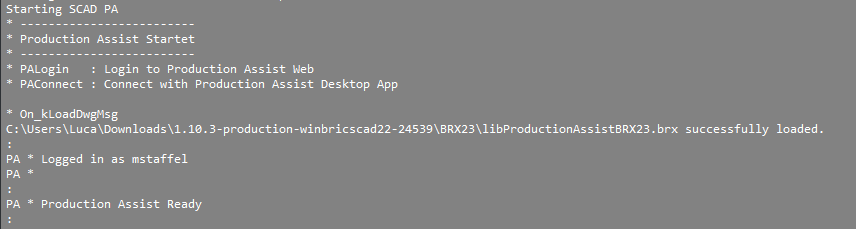
Without Autoload, you must load the module again with APPLOAD after every startup.
The DWG library is provided for BricsCAD, AutoCAD, and ZWCAD. Connecting it in the BricsCAD panel is required only for BricsCAD. The library contains prepared truss, scaffolding, and chain-hoist blocks with the information Production Assist needs for calculations.
Install and check the separately provided library from the Library panel on the Production Assist tab:
Install Library.ProductionAssistLibrary under Documents.Check Library later to check the version, build, and file checksums. If the library is missing, outdated, or modified, you can download and install it again. A successfully installed, unchanged library is checked against the saved verification data without downloading it again.Warning: If you confirm the installation or repair, the library files in the destination folder are replaced. This also applies to files customized locally. Back up your own changes elsewhere first. Selecting Cancel leaves the existing library unchanged.
The selected destination folder is saved and reused for later checks. If no destination has been saved yet, Install Library opens the folder picker automatically.
PANELS, enable the Library panel.Manage Library. The Settings window opens.Program Options → Files → Library directory path, select the ProductionAssistLibrary folder.Generate thumbnails so BricsCAD creates previews for the blocks.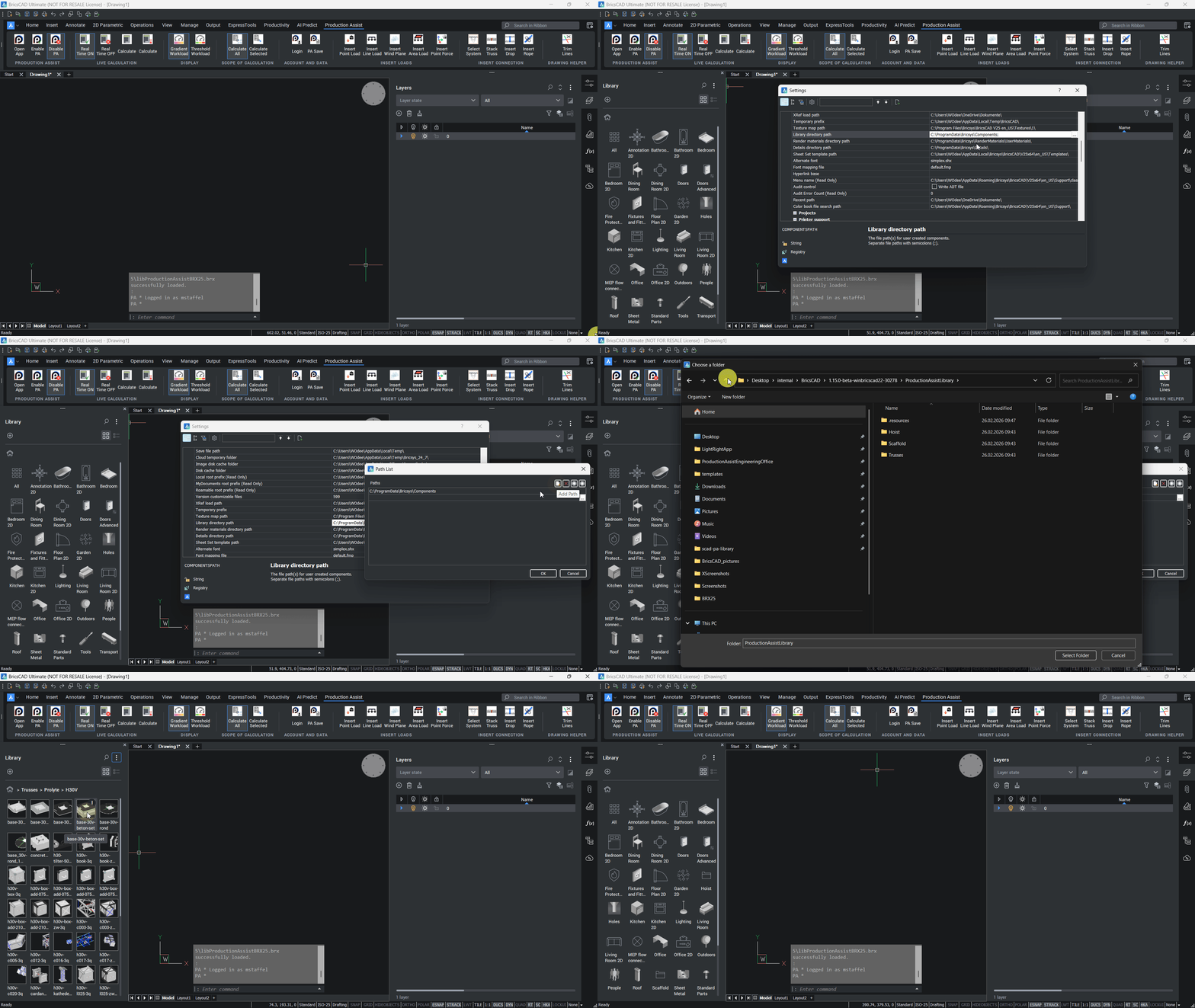
Check: The Library panel now shows Production Assist components with previews.
With a drawing open, the AutoCAD plugin loads its tools automatically:
productionassist.cuix provides the tab and ribbon buttons. On macOS, productionassist-menu.json provides the Production Assist menu and the Production Assist - … toolbars in Draw and Model. On macOS, the productionassist-menu.json file and its associated PNG images are required alongside ProductionAssist.bundle.Operating system note: AutoCAD for Mac does not have the Windows ribbon. For a manual installation, also copy
productionassist-menu.jsonand its associated PNG images besideProductionAssist.bundle. The plugin sets up the toolbars and then requests a user interface refresh. The Production Assist menu provides the same commands.
APPLOAD in the command line and press Enter.ARXYY folder for your AutoCAD version.ProductionAssist.arx on Windows or ProductionAssist.bundle on macOS.Check: The AutoCAD command line displays a Production Assist startup message and the signed-in user. Available Production Assist commands begin with the PA prefix.
Note: Do not enter only
PAas a test command.PAis not itself a Production Assist command and may conflict with existing LISP routines. Use the startup message, the availablePA...commands, and the loaded application's status in the APPLOAD dialog as confirmation.
First open a drawing. The Production Assist tab is added automatically when the module loads. If the tab is missing even though the commands are available, check the AutoCAD command line. The plugin reports there if productionassist.cuix is missing or if no active document is available to load it. If needed, open a drawing and reload the module. The following manual steps are documented for AutoCAD on Windows. In BricsCAD, the ribbon is added directly when the module loads.
CUI in the AutoCAD command line.ARXYY folder in the extracted ZIP package. Alternatively, use content\templates in the Production Assist desktop app's installation folder.productionassist.cuix.A typical path for a standard installation is:
C:\Program Files\Production Assist\content\templates\
If Production Assist was installed in a different folder, use <Production Assist installation folder>\content\templates instead.
Check: The Production Assist tab is now visible in the AutoCAD ribbon. Its buttons invoke the same commands that are available from the command line.
The distribution configuration includes ProductionAssist.bundle for AutoCAD 2024, 2025, and 2026 on macOS. Load the appropriate bundle with APPLOAD and open a drawing. The plugin adds the Production Assist menu and its own toolbars in the Draw and Model areas. Press Cmd-1 to show the tool palette. In the command list for customizing a toolbar, search for PA - to find Production Assist commands and their icons.
Existing custom toolbars and commands are retained. If the PA tools are missing, check the JSON file and PNG images beside the bundle, then reload the plugin. The Windows steps for loading a CUIX file do not replace these Mac resources. The complete display and persistence after a restart still need to be checked in the running CAD application. If you have further problems, contact your CAD administrator or Production Assist Support.
Enable PA.With the default Manually Enable setting, click Enable PA. With Ask at each start, respond to the prompt; Always Use activates the drawing when it opens.
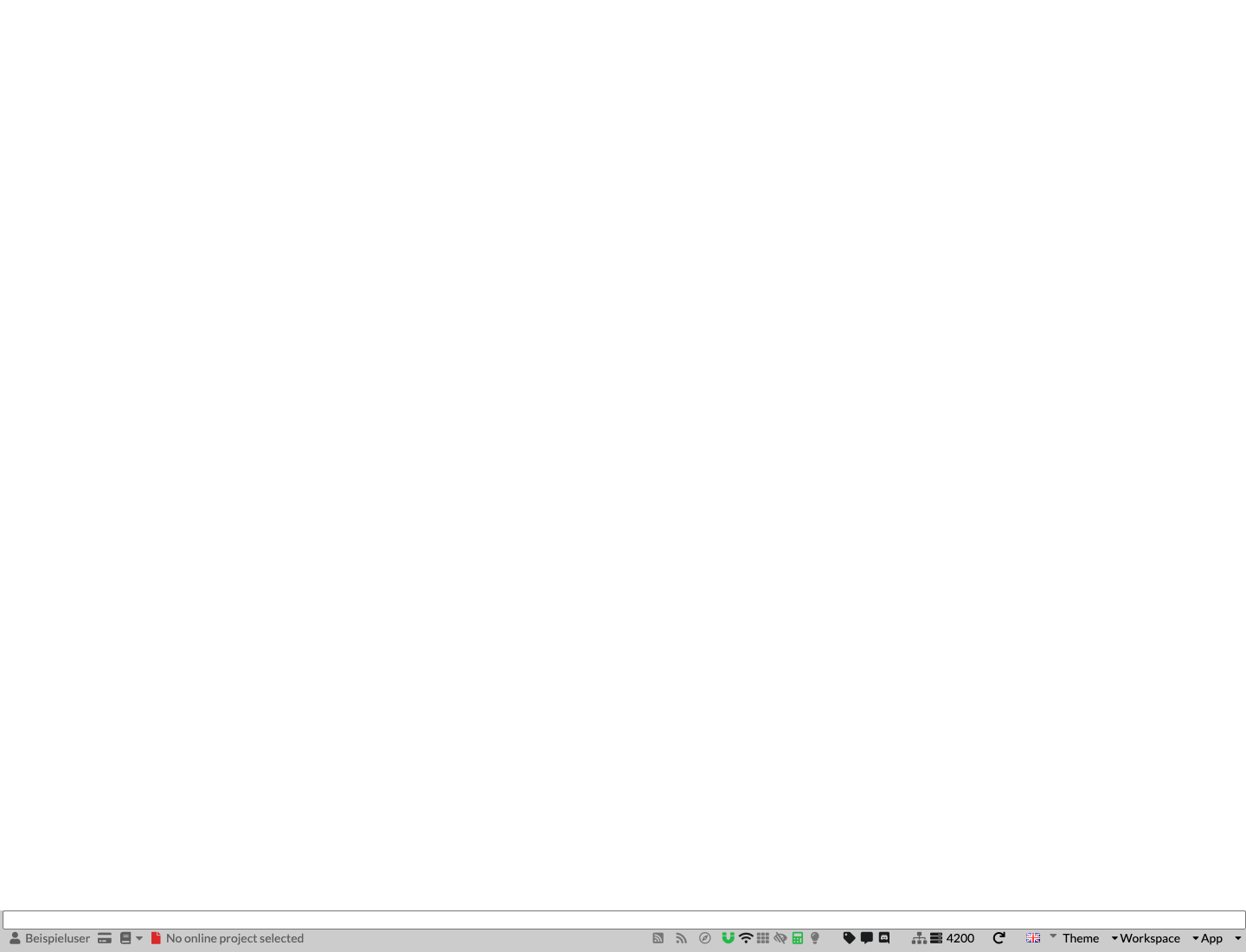
The connection is successful when:
PAIsActive command in the CAD command line returns true for the active drawing,Enable PA button shows its active state,Production Assist Ready or an equivalent ready status, andThe AutoCAD Loading Behavior setting determines the activation behavior for each drawing you open. The default is Manually Enable. Autoload loads the module when the program starts, but with this default it does not activate a drawing.
BricsCAD note: BricsCAD must be in the foreground for changes from the desktop app to appear. On macOS, you may also need to switch views before the real-time change is displayed.
Run this short test before working on a real project:
APPLOAD again.ProductionAssistLibrary is available.If all checks pass, installation is complete.
| Problem | Likely cause | Solution |
|---|---|---|
| The required CAD version is not offered in the installation dialog. | The dialog does not list the version, or the host application was not detected. AutoCAD 2025/2026 and BricsCAD 27 are not currently configured there. | Check the major version with ABOUT. For AutoCAD 2025/2026 or BricsCAD 27, use the matching manual download package; if a listed version is disabled, restart the desktop app after installing the host application. Also check that the package includes a module for your operating system. |
| Production Assist reports Version conflict detected. | The loaded CAD plugin and the Production Assist user interface have different versions. | Update the desktop app and reinstall the matching plugin package. The dialog shows the detected versions and paths; Open Parent Folder opens the relevant location if it is available locally. |
APPLOAD reports that the module cannot be loaded. | The module is for a different major version, or a bundled dependency is missing. | Select the matching ARXYY or BRXYY folder and restore the complete extracted folder structure. |
| Loading from a network or cloud folder is very slow or unreliable. | Dependencies are being loaded on demand from an unsuitable location. | Move the complete plugin folder to a local drive and register the module from there again. |
| AutoCAD blocks the extension. | The folder is not allowed as a trusted location. | Allow it permanently in the security prompt or add the local plugin folder to AutoCAD's trusted locations. |
The PA... commands work, but the AutoCAD tab or Mac toolbars are missing. | The module is loaded, but the user interface resources are missing or could not be set up. | Open a drawing and reload the module. On Windows, load productionassist.cuix as described in section 7.2 if needed. On macOS, check productionassist-menu.json and the PNG images beside the bundle, and show the tool palette with Cmd-1. |
| The Production Assist tab is missing in BricsCAD. | The BRX or MRX module was not loaded or was not registered to start automatically. | Open APPLOAD, load the module for the correct version, and enable Autoload. |
| The plugin is gone again after every restart. | Autoload, AUTO, or the AutoCAD startup suite is not configured. | Open APPLOAD and register the module to start automatically. |
| The desktop app does not connect. | The app is not running, Plugin mode is inactive, or the CAD application is not in the foreground. | Start the desktop app, sign in, enable Plugin, bring the CAD application to the foreground, and toggle Disable PA/Enable PA once. |
| The BricsCAD Library is empty or has no previews. | The Library path is wrong, or previews have not been generated yet. | Select the ProductionAssistLibrary folder and run Generate thumbnails. |
| A manual installation does not receive updates. | Manually installed plugins are not checked automatically. | Download the current package again and replace the entire plugin folder. |
If the connection still fails, fully restart the CAD application and the desktop app first. Then note the exact message in the CAD command line and contact Production Assist Support.
With the portable desktop app, user data is in the ProductionAssist-data folder beside ProductionAssist.exe in the extracted program folder. The plugin must therefore be explicitly pointed to this directory.
Beside the loaded CAD plugin module, create a UTF-8 encoded file named productionassist-plugin.json:
{
  "appDataFolder": "D:/Programme/ProductionAssist/ProductionAssist-data"
}
Replace the example path with the full path to your actual ProductionAssist-data folder. Then restart the CAD application. For details, see Configure the plugin AppData directory.