

Labels can serve as page backgrounds for PDF documents. For example, you can print a company logo, header, or footer on calculation reports and assembly sheets. Create and manage the template in the Resource Manager under the Labels & Backgrounds tab.
The Default Background template can be used as a starting point. Before exporting, check that the paper size and label area match the desired PDF.
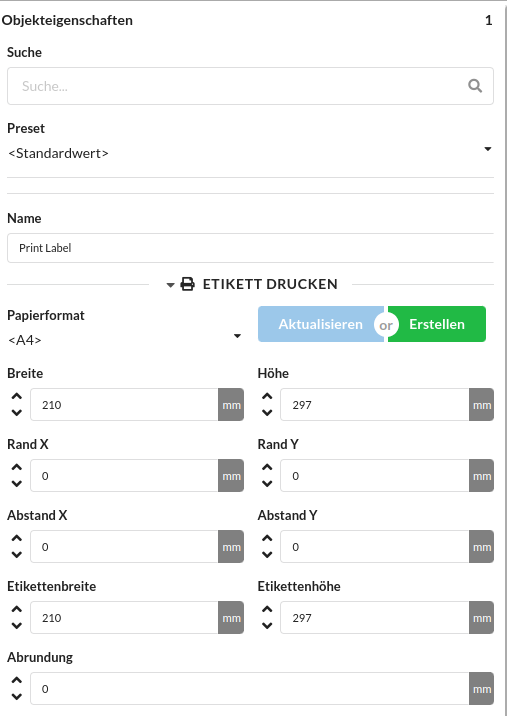
Select the background template directly in the relevant PDF export dialog. Select
| Open | Background option | |
|---|---|---|
| Calculation report | File → Export Calculation Report as PDF... | Print Label as Background; Print Label as Background for First Page is also available. |
| Documentation | File → Export Worksheets as PDF... | Print Label as Background; Print Label as Background for First Page is also available. |
| Individual assembly sheet | Window → Worksheets, then select PDF in the assembly sheet | Use the Background Template field in the PDF dialog. |
For calculation reports and documentation, the first option applies to the following pages; the second applies only to the first page. When exporting an individual assembly sheet to PDF, one background option is available.
For information about creating the calculation report itself with Markdown, formulas, and result sections, see Create and Format a Calculation Report.
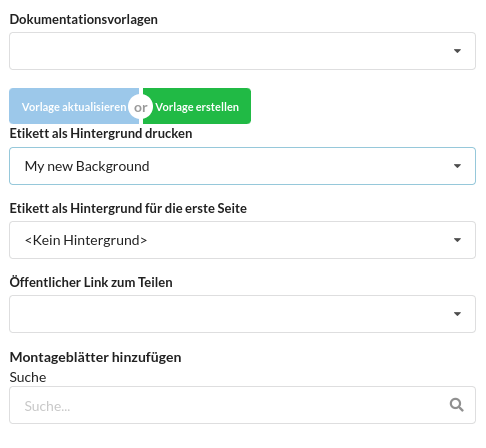
You can export selected labels to a separate Production Assist file:
.lrwx extension.The file contains the selected labels. Open it in Production Assist and import the desired template into the destination file.
You need to be signed in and have an internet connection to upload to the cloud. Upload the label template in the Resource Manager:
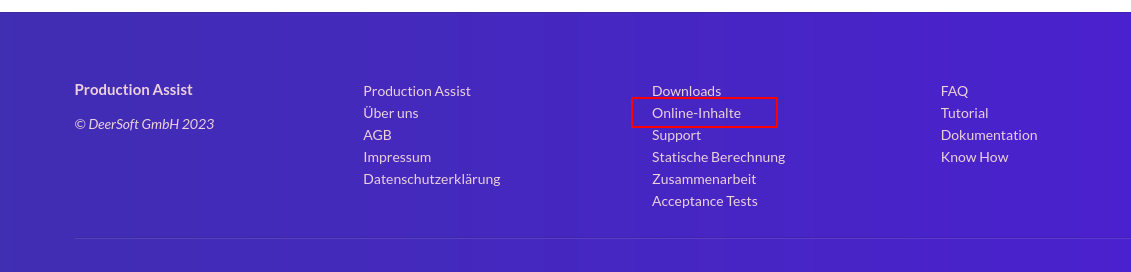
The older browser images show an earlier online content workflow. The current upload is done directly in the Resource Manager using Upload to Cloud. You can still use the web interface to upload an exported .lrwx file or a new revision.
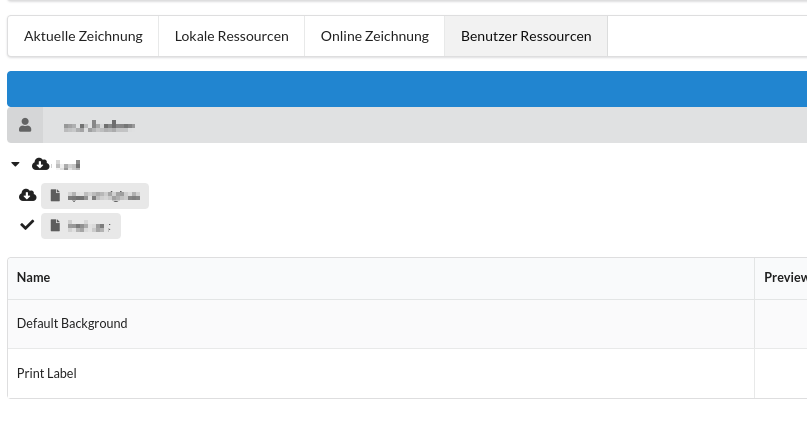
Your account must have the appropriate permission to manage other users' content. Which accounts can manage others' content depends on the online permissions.