The maintenance views show how inventory items, inspection dates, templates, and reports are intended to look. In the current product, they do not provide a usable maintenance workflow. The entries and dates shown are hard-coded examples. The account navigation does not currently link to the maintenance areas. Do not use these views to record or manage real inspections.
The example Maintenance Pool view contains the following columns. They do not currently show saved inventory data:
| Column | Information shown |
|---|---|
| Group | Inventory group. |
| Supplier | Supplier or manufacturer. |
| Name | Item name. |
| Linked Symbol | Assigned symbol. |
| Serial | Serial number. |
| Next Maintenance | Next inspection date. |
| Operating Hours | Operating hours. |
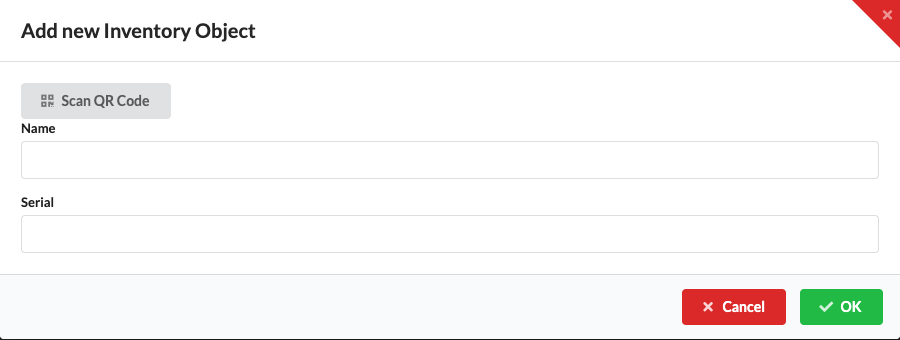
The search field is not connected to a filter. Add... opens the Add new Inventory Object dialog, which has Name and Serial fields. Cancel, X, or Esc closes it. OK has no action assigned: it neither saves an item nor closes the dialog. Do not use this form to record inventory.
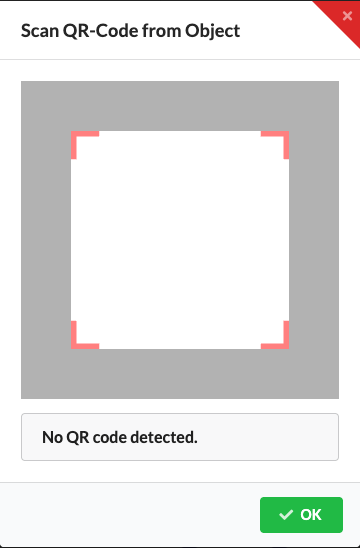
Scan QR Code also opens the Import QR Code dialog. It requires camera access and displays the scan status, but a recognized code is not processed further in this maintenance area. OK, X, or Esc closes the scanner. A current capture of the same scanner interface with a different opening title, Scan QR-Code from Object, appears under Scheduled Maintenance.
The QR scanner opens from Scan QR Code in Add new Inventory Object and from Scan QR Code in Sheduled Maintenance. The first entry point shows Import QR Code; the second shows Scan QR-Code from Object. A recognized code is not processed further in either maintenance view. The UI audit capture below shows the second opening title and an empty scan state. Camera access is required during actual use.
The Maintenance Pool uses the QR scanner without an import function. How the Camera command in the toolbar and Scan QR Code in the menu bar evaluate links is described in Scan QR codes with the camera. That behavior does not apply to this maintenance dialog.
On the right, Maintenance History shows example rows with Name, User, Date, and View. The Open, Start new maintenance..., and Shedule new maintenance... buttons have no action assigned in this view. The example rows cannot open a saved inspection report.
Sheduled Maintenance shows example tables for Due Today, Due this week, Due next week, and Due next month. Each table contains Date, Maintenance, Duration, and User. The displayed dates are not taken from a project or calendar.
Scan QR Code opens the Scan QR-Code from Object dialog. Point the camera at a QR code; the dialog displays the scan status. However, this maintenance view does not pass a recognized code to a processor or associate it with an inventory item or inspection date. Close the dialog with OK or X. Production Assist requires camera access. The shared scanner interface is shown under QR Scanner. Start is configured as a link, but its current destination does not match a declared maintenance route. A template view therefore does not open reliably; the button also does not start maintenance or create a report.
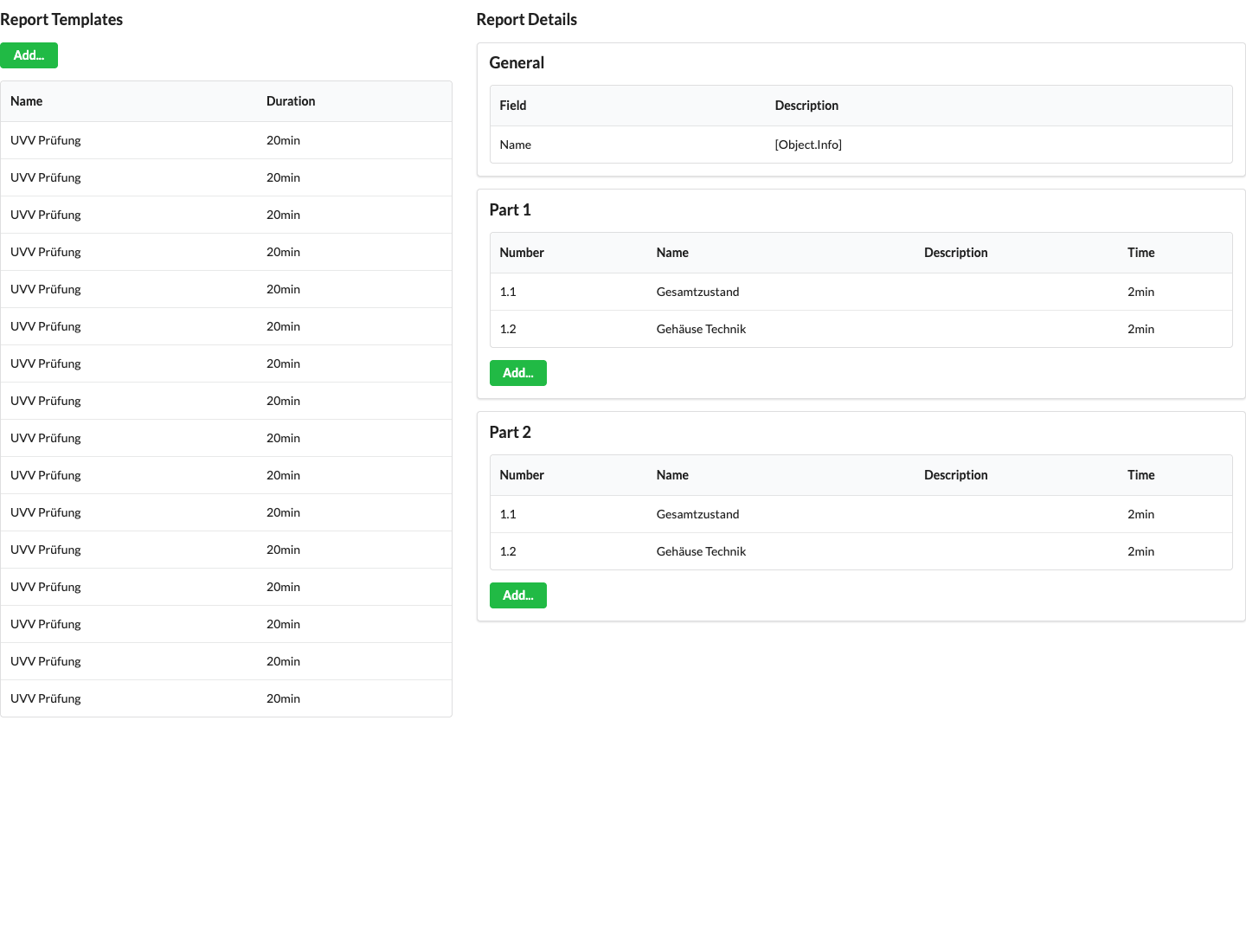
The Report Templates view shows example templates with Name and Duration. Report Details shows General, with Field and Description, as well as the inspection parts Part 1 and Part 2. Their tables contain Number, Name, Description, and Time.
The Add... buttons for templates and inspection steps have no action assigned. The example rows cannot be edited or saved.
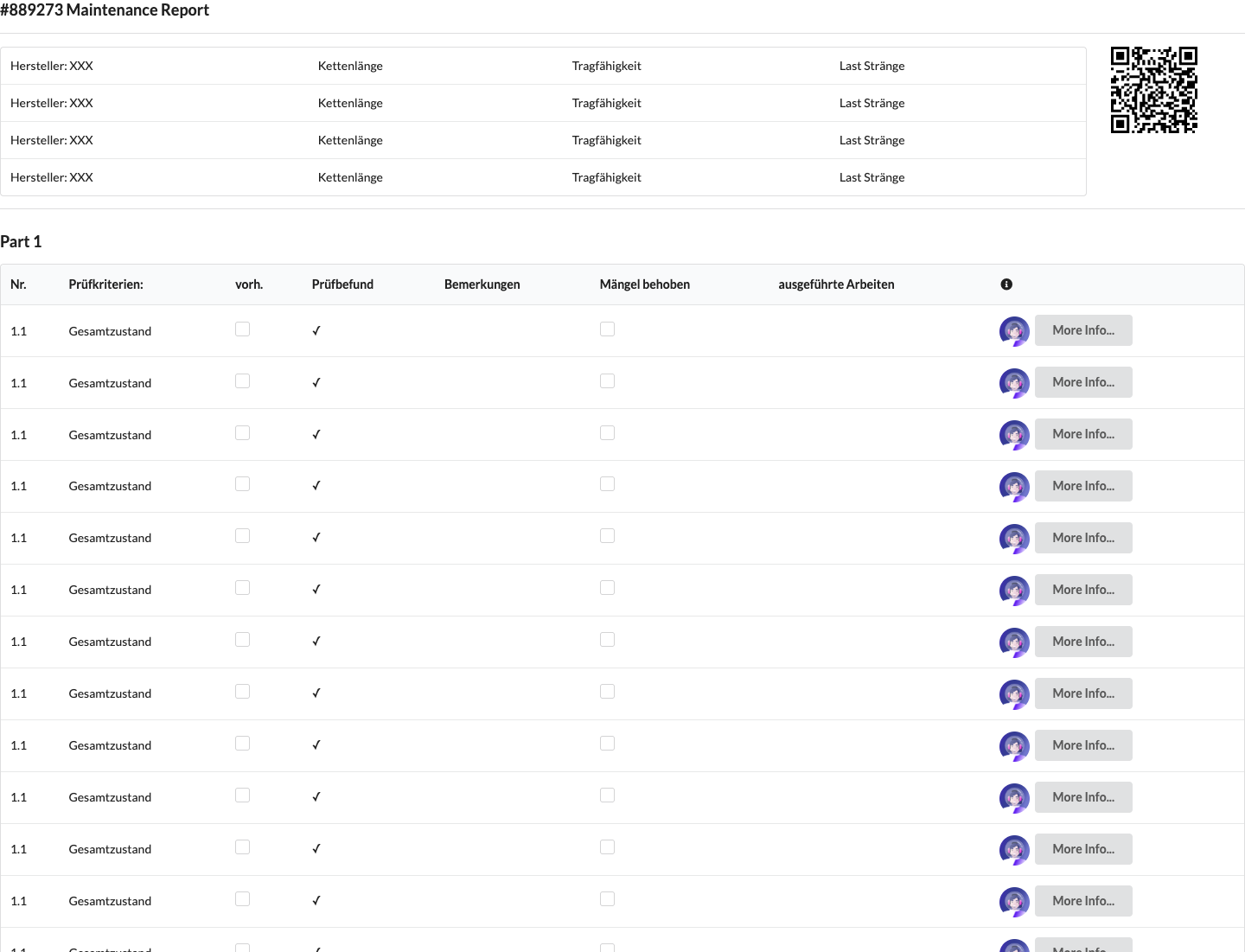
The existing report preview shows a fixed report ID, properties such as manufacturer and chain length, a QR code, inspection parts Part 1 through Part 3, and a Summary. The table uses these labels: No. (Nr.), Inspection criteria (Prüfkriterien), Present (vorh.), Inspection result (Prüfbefund), Comments (Bemerkungen), Defects corrected (Mängel behoben), and Work performed (ausgeführte Arbeiten).
The preview is not currently connected to the maintenance views. Its repeated inspection steps are sample data. The checkboxes are not connected to storage, and More Info... does not open additional information. The QR code contains a hard-coded example address and does not point to a real maintenance report. Do not use the preview as an inspection record.