

The CRM system brings together contact tasks for prospects. Operators work on their assigned tasks, record contact attempts, and track follow-ups. Administrators can view the full task queue, manage assignments, and administer the CRM team.
Open the operator queue at /crm. The admin dashboard is available at /crm/admin if your account has CRM administrator permissions. The application only shows views your account is authorized to access.
Operators with CRM staff status can see their own tasks and edit prospect details and contact history. Whether staff can receive new tasks depends on whether their assignments are active. Administrators can also filter all tasks, assign tasks to active CRM staff, and manage the CRM team. A completed task cannot be edited or reassigned.
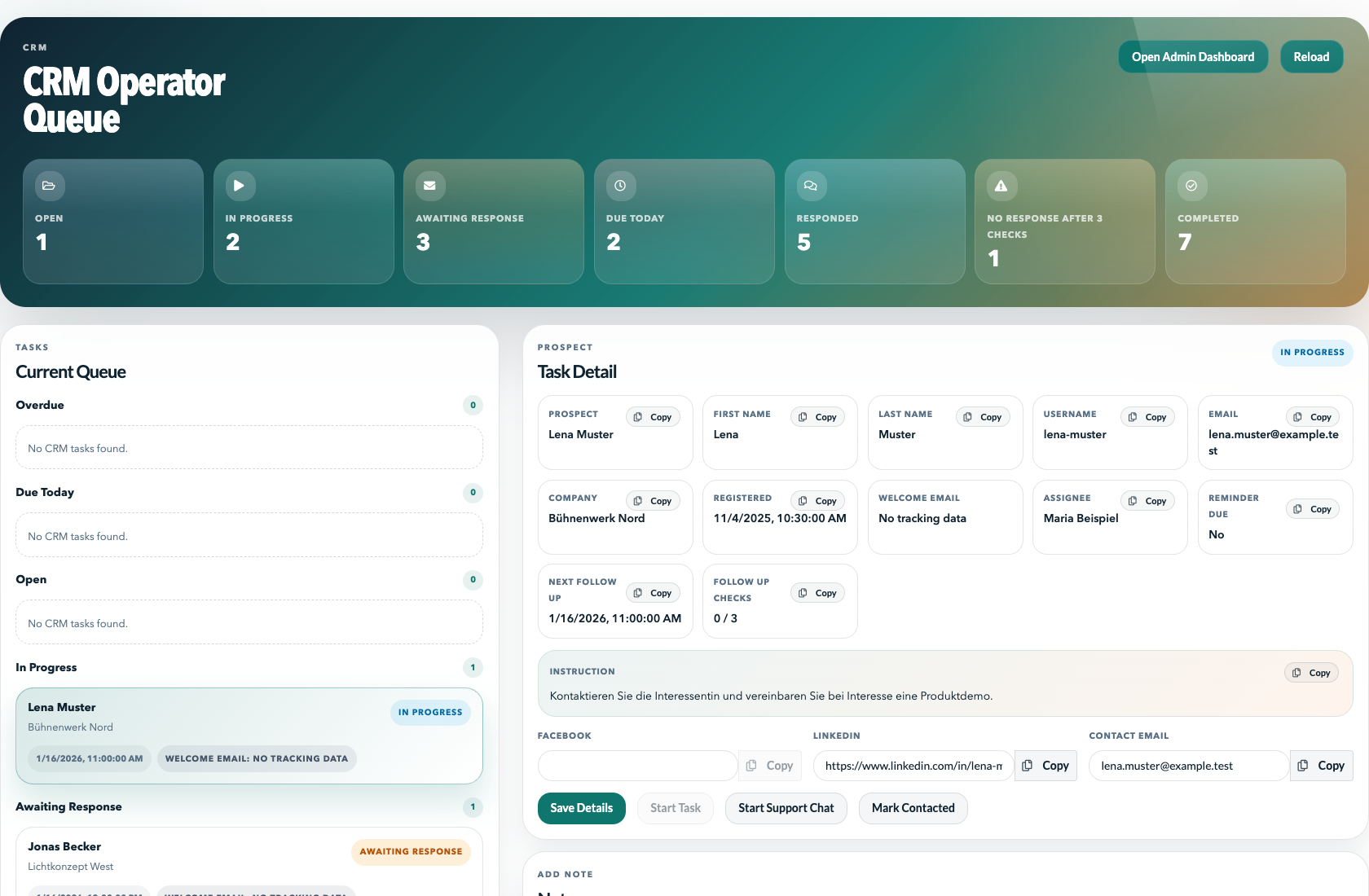
The queue groups tasks by due date and status: overdue, due today, open, in progress, awaiting a response, and completed. Select a task to view the prospect details, instructions, status, and contact history on the right. Select Reload to fetch the data from the server again.
If the task is still open, select Start Task to move it to in progress. For prospects with an email address, Start Support Chat can prepare a support chat. The CRM page confirms when the chat is ready.
When a prospect replies or a follow-up is due, record the update in Response Check. Select Responded or No Response, and add a channel and note if needed. You can record a response for a task in Awaiting Response at any time. You can record No Response only when the displayed follow-up time is due. After each check, the next follow-up time is displayed. After three checks with no response, the task is completed with that outcome.
To complete a task, choose the appropriate result under Outcome and add Outcome notes if needed. You must record a contact channel before completing a task. For an outcome that requires a reply, you must also record that a reply was received. No Response After 3 Checks is available only after three checks have been recorded with no response. Completed tasks are read-only.
Under Draft Templates, you can select a channel and language, then edit the subject and message text. Use Copy Subject and Copy Body to copy the corresponding content to the clipboard. In this version, draft edits are saved only in the local browser; they do not send a message automatically.
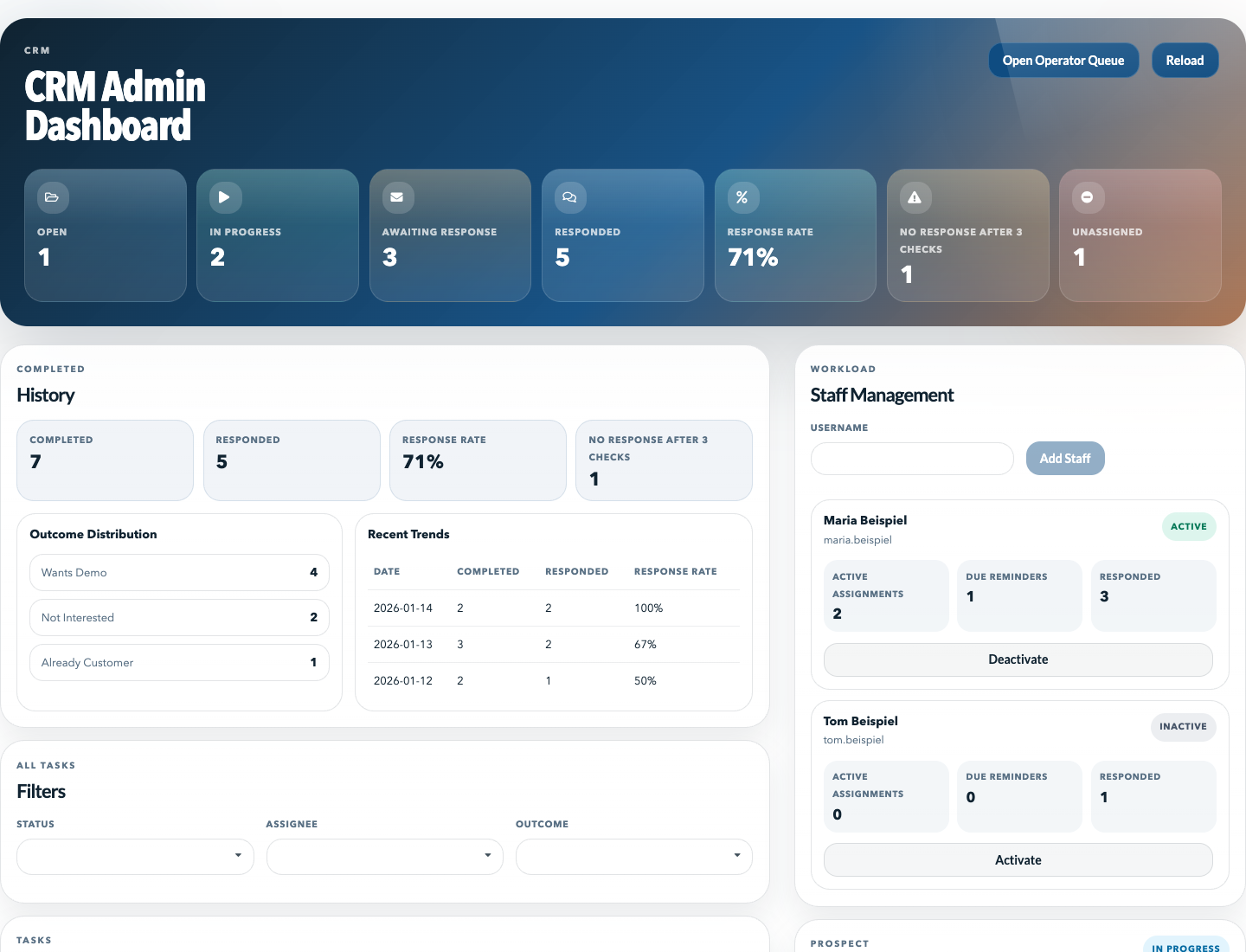
The dashboard summarizes open and active tasks, pending responses, response rate, and tasks with no response. The history overview shows completed tasks, their outcomes, and response trends.
Use the Status, Assignee, and Outcome filters to narrow the task list. Select a task to review its details and contact history. Select Reassign to assign an incomplete task to an active CRM staff member.
Under Staff Management, you can add an existing Production Assist account to the CRM team by username. There, you can enable or disable the assignment of new tasks. Disabling assignments does not remove existing assignments; administrators can still reassign open tasks.
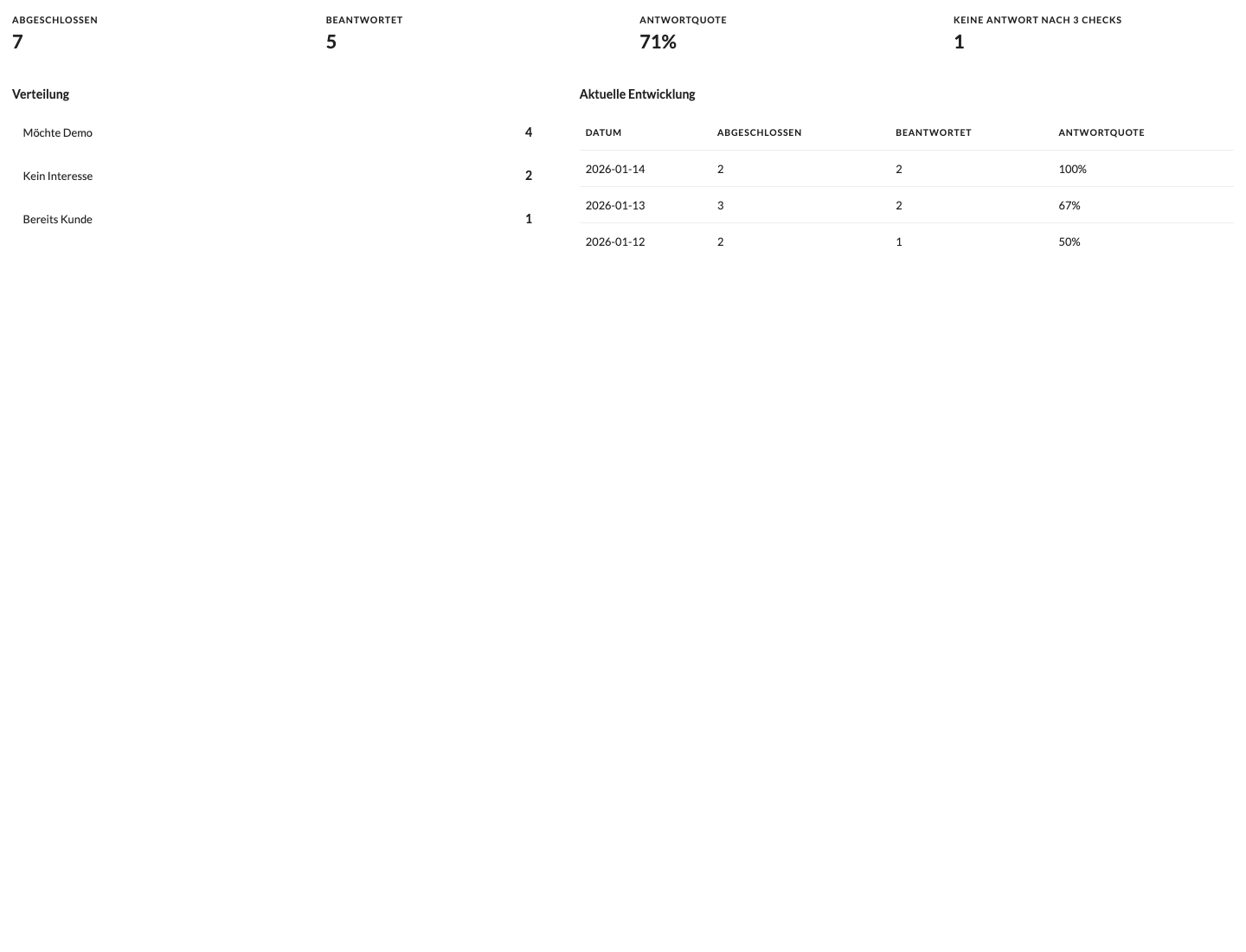
The metrics help with daily prioritization. Due Today and Overdue highlight follow-ups that need attention. The response rate compares completed tasks with a recorded response against all completed tasks. Outcome distribution and daily trends summarize completed contact tasks.
For more CRM features, see the User interface guide.